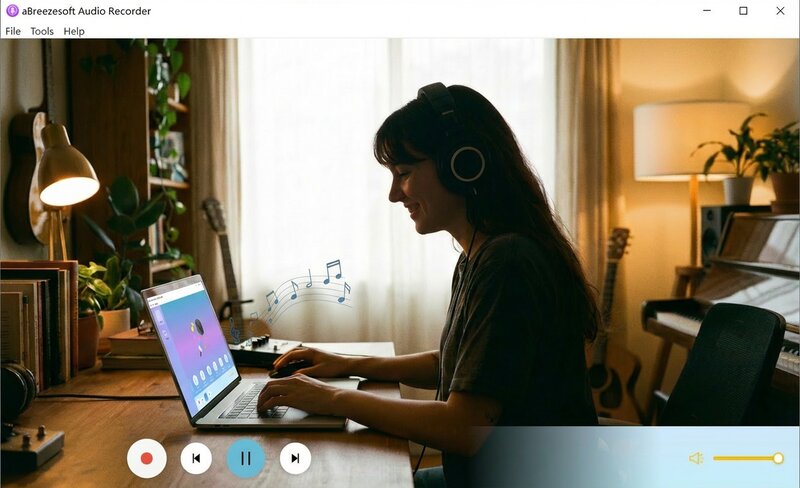
If you’re looking for a reliable way to record Spotify to MP3 in 320kbps, you’re not alone. The good news is: yes, it’s possible to capture high-quality Spotify audio for personal listening and playback convenience, especially in environments where streaming isn't an option.
In this 2025 guide, we’ll show you the simplest and most effective method using a dedicated audio capture tool like aBreezeSoft Audio Recorder. Whether you need to fill an old MP3 player, prepare a USB drive for a car stereo on a road trip, or simply ensure you have music in no-signal zones, this approach allows you to manage your personal listening context flexibly.
1. Why Audiophiles Need 320kbps MP3 Quality
The "Invisible Shackles" of Streaming Downloads
Many users mistakenly believe that subscribing to Spotify Premium means they "own" the music. This is not the case. Even if you hit the "Download" button, Spotify does not save a universal MP3 file. Instead, it saves an encrypted Ogg Vorbis cache file protected by DRM (Digital Rights Management).
This means:
- You cannot find these files: They are hidden deep within the system and cannot be directly copied.
- You cannot play across devices: You are stuck playing them within the Spotify App; you cannot transfer them to an iPod, USB drive, or other players.
- Music disappears if you stop paying: If your subscription expires, all your offline songs become unplayable instantly.
320kbps: The Gold Standard for MP3
Why do we keep emphasizing 320kbps? This is the highest bitrate the MP3 format can achieve.
- 128kbps/192kbps: Sounds dull with lost high-frequency details, especially noticeable on good headphones.
- 320kbps: Provides a listening experience close to CD quality, preserving rich details, deep bass, and clear vocals.
To gain true freedom and the ultimate listening experience, High-Fidelity Recording is currently the safest and most reliable solution.
Other Ways to Record Spotify Music (And Their Limitations)
Before choosing a dedicated Spotify recorder, some users may explore alternative ways to capture or record audio for personal listening or offline convenience. Online Spotify converters often promise quick format conversions, but they frequently come with unstable audio quality, strict usage limits, or potential security concerns. Screen recording with system audio is another possible approach; however, it usually requires manual configuration and may introduce background noise or inconsistent volume levels. Traditional audio recording software often depends heavily on system volume settings, lacks automated metadata tagging, and cannot guarantee consistent audio fidelity.
These alternatives may still be sufficient for short or occasional recordings (e.g., if you only need one specific track). However, they often fall short for users who prioritize audio consistency, efficient workflows, and precise output control. Compared with these methods, a purpose-built audio capture tool generally offers more stable performance and better control over recording quality and final output.
2. Best Spotify Recorder to Record Spotify to MP3 in 320kbps (2025)
There are countless recording software options on the market. You might have tried free online converters or browser extensions, but they often come with significant downsides: unstable connections, low-quality 128kbps audio, annoying pop-up ads, or sudden failures due to Spotify updates.
aBreezeSoft Audio Recorder changes everything, especially when stability and consistent audio quality matter for longer recording sessions. Unlike unstable web tools, it is a Smart Audio Capture Engine built specifically for streaming music, which is especially useful when recording long playlists or albums without manual intervention.
Why aBreezeSoft Is the Best Spotify Recorder in 2025
✅ Native 320kbps MP3 Recording (Zero Configuration)
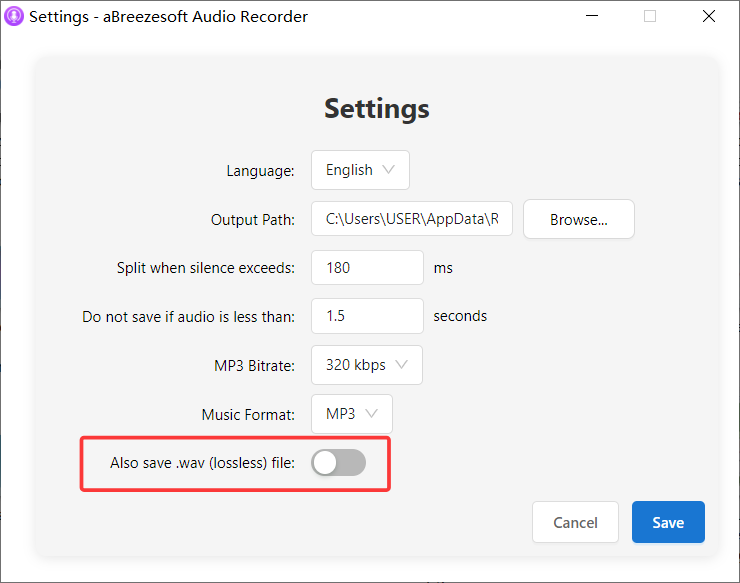
Most software requires you to have the knowledge of an audio engineer to set sample rates and bitrates. With aBreezeSoft, we believe in "Zero Configuration." It comes pre-set for Optimal Recording Quality (320kbps MP3) out of the box. You don't need to understand parameters; just press record, and you get the highest quality audio file every time.
✅ Digital Audio Capture Without Quality Loss
This is crucial for real-world usage. Traditional recorders often record "sound coming from the speakers," which means you have to crank up your computer volume, and quality suffers. The recorder uses Driver-Level Capture Technology, grabbing the digital audio stream directly from within the sound card.
- No Volume Adjustment Needed: This means you can watch a YouTube video or join a Zoom call while recording, and the software will still capture only the clean Spotify audio at 100% quality.
✅ Silent Recording Mode (Record Spotify Without Sound)
This feature is ideal for batch archiving overnight, especially when you want to avoid background noise or interruptions during long recording sessions. Want to record a massive playlist while studying in the library, working in the office, or sleeping at night? Simply check the "Mute" option in the interface. Your computer speakers will remain silent, not disturbing you or anyone else, but in the background, the software is capturing every song at full 320kbps speed.
✅ All-in-One Spotify Recording Features
- Auto ID3 Tags: Ended up with a bunch of "Track01.mp3" files? Not anymore. The tool automatically identifies and completes the Song Title, Artist, and Album Cover.
- Ad-Interference Removal: A great solution for Spotify Free users, it automatically filters out ads, leaving only pure music.
- Already impressed? Stop waiting and start building your library.
- Download aBreezeSoft Audio Recorder Free Trial to experience the quality yourself.
3. How to Record Spotify to MP3 in 320kbps (Step-by-Step)
Getting your permanent music library doesn't require complex hacking skills. Using aBreezeSoft Audio Recorder, the process is as simple as playing music.
Step 1: Install and Launch
First, download and install aBreezeSoft Audio Recorder for your system (Windows or Mac). The installation package is very lightweight and typically takes a few minutes to complete the download and installation process.
Launch the software, and you will see an intuitive, clean interface. At this point, open Spotify (Web Player or Desktop App).
Step 2: One-Click to Record Spotify to MP3
Forget those complex "Settings" menus. As promised, the recorder is already pre-set to the 320kbps standard for you.
- On the main interface, simply click the red "Record" button.
- Go back to Spotify and start playing the song or playlist you want to save.
How aBreezeSoft Captures Spotify Audio Without Quality Loss
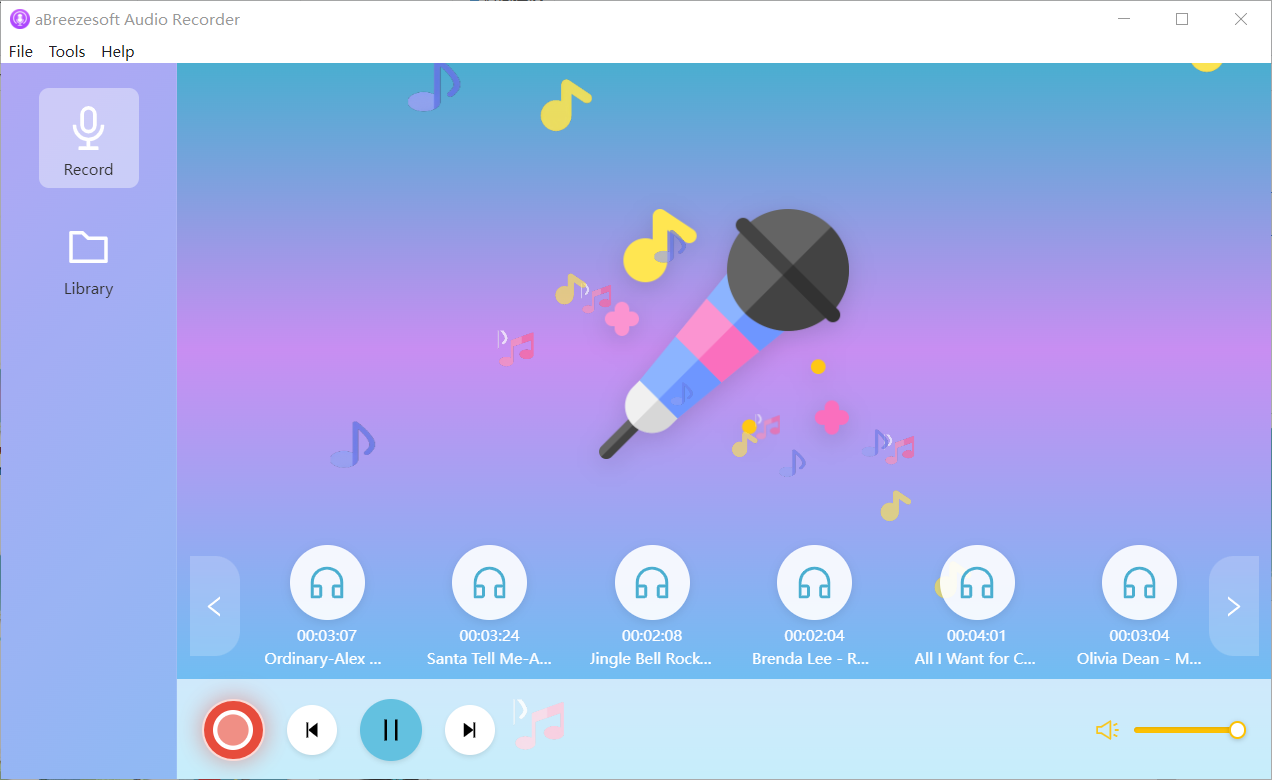
You will see musical notes flying from all directions on the software interface, all being collected together to form high-quality tracks. This beautiful visual feedback is not just pleasing to the eye; it indicates the software is precisely capturing every data packet of audio without any quality degradation.
> Pro Tip: At this point, you can adjust your computer's system volume or even mute it. Because the software captures the internal audio source, your system volume level will not affect the loudness or quality of the recording file at all.
Step 3: How to Record Spotify in Silent Mode Without Sound
If you are in an office, library, or want to leave your computer recording hundreds of songs while you sleep, this feature will be your best friend.
- During recording, find the Speaker Icon (Mute) on the software interface and check it.
- Your computer speakers will instantly go silent.
- But look at the screen—the recording progress bar is still moving normally!
Now, you can peacefully attend a Zoom meeting, watch a movie, or sleep. The program will silently "transport" every Spotify song to your hard drive in the background without any interference.
4. Advanced Tips to Manage and Edit Recorded Spotify MP3 Files
Recording is just the first step. This tool also provides a suite of powerful post-production tools to ensure your library is professional and personalized.
🎵 Smart Ad Filter
If you are using a Spotify Free account, the most annoying thing is the audio ads inserted between every few songs. The recorder has a built-in advanced Smart Filter Algorithm. During recording, it keenly identifies and automatically eliminates these non-music interruptions. The Result? When you open your output folder, you will see a seamless collection of pure songs. No ads, no interruptions, just a smooth music experience.
✂️ Make Ringtones From Recorded Spotify Songs
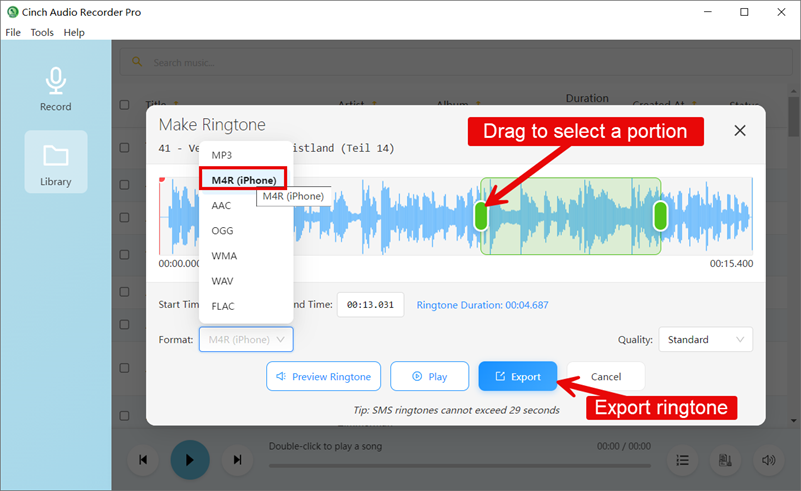
Recorded a catchy song and want to set it as your ringtone? You don't need to download extra audio editing software; the software has built-in tools.
- Start Creating: In the "Library", find your recorded song, right-click on it, and select "Make Ringtone for Phone."
- Choose Format: For best compatibility, iPhone users should select M4A format, while Android users can use MP3 or AAC.
- Precise Editing: Use the built-in tool to adjust the start and end points. We recommend selecting the best 20-30 seconds (usually the chorus), cutting out long intros so the ringtone grabs attention instantly.
- Export and Find: Click "Export" to save.
Where is the file?* Right-click the song and choose "Open File Location," then go up one level to the parent folder. You will see a folder named "Ring" where all your ringtones are neatly stored. For more detailed step-by-step instructions, you can check out this guide: How to Make Ringtone.
🏷️ Auto-Add ID3 Tags to Spotify MP3 Files
For perfectionists, the most unbearable thing is a file named Track01.mp3 with no cover art. While recording, our engine automatically matches with global music databases. When recording finishes, your MP3 file already has complete identity information:
- Accurate Song Title
- Artist/Singer
- Album Name
- High-Res Album Cover
This way, when you import files to your phone or car stereo, the screen displays beautiful album art instead of a blank space.
5. Spotify to MP3 Recording FAQs
Q: Is it legal to record Spotify to MP3 for personal use? A: In most jurisdictions, as long as it is for personal study, appreciation, or collection, and not for secondary distribution or commercial profit, this kind of "analog/stream recording" is often interpreted as Fair Use. For more detailed information about the legality of recording streaming audio, you can refer to Is Recording Streaming Audio Legal?.
Q: Does recording Spotify reduce audio quality? A: No. aBreezeSoft uses 1:1 digital capture technology. As long as your Spotify source settings (Premium account) are set to "Very High" quality, the recorded file will be a perfect 320kbps MP3.
Q: What streaming services can aBreezeSoft record from? A: Absolutely! aBreezeSoft is an all-around recorder. It supports YouTube Music, Apple Music, Pandora, Deezer, and even online radio stations—basically any sound your computer makes.
6. Final Thoughts: Record Spotify to MP3 in 320kbps Easily
Music is a carrier of memory and should not be bound by expensive subscription fees or DRM chains.
aBreezeSoft Audio Recorder gives you the key to freedom. It is simple, powerful, and respects sound quality. Now, you can finally build that offline music library you've always dreamed of, keeping your favorite melodies by your side forever.
Don't let good music slip away. Start building your collection today!