Table of Contents:
- Why You Need an Apple Music Converter
- Method 1: Free Ways (Audacity & GitHub Tools)
- Method 2: The Safe & Easy Way (aBreezeSoft)
- Real Test: Recording Quality & Speed
- How to Save on Windows & Mac
- Step-by-Step Guide
- FAQ
- Conclusion
Key Takeaways:
- Problem: Apple Music tracks are encrypted M4P files that disappear when your subscription ends.
- Solution: Recording the audio stream is the safest, legal way to backup your library.
- Tool: aBreezeSoft Audio Recorder captures Hi-Res Lossless audio (ALAC/FLAC) without triggering account bans.
- Bonus: Keep your lyrics, album art, and metadata intact for any player.
If you have ever tried to copy your downloaded Apple Music songs to a USB drive or a generic MP3 player, you likely hit a wall. The files are hidden, encrypted, and unplayable outside the official Music app or iTunes.
Many users are searching for a reliable Apple Music Converter to break free from these restrictions and truly own their library.
Quick Answer: The most effective way to save Apple Music to MP3 is by using an intelligent audio capture tool. For a 100% free (but complex) solution, you can use Audacity or command-line tools. For an automatic, safe, and lossless solution that preserves ID3 tags, aBreezeSoft Audio Recorder is the recommended choice for 2025.
In this guide, we will compare these methods so you can decide which one fits your needs.
Why You Need an Apple Music Converter (The DRM Problem)
Before we start, it is important to understand why the "Download" button in the official App is not enough.
When you download a song on Apple Music, you are merely renting a cached file. These files are protected by DRM (Digital Rights Management).
- Rental Status: If you cancel your subscription, the files disappear or become unplayable immediately.
- Device Lock: You cannot transfer them to a Sony Walkman, car stereo, or non-Apple MP3 player.
- Encrypted Format: The files are not standard M4A or MP4 audio; they are proprietary encrypted M4P (Protected AAC) files. Regular M4A to MP3 converters cannot open them.
To truly own your music, you need to rip the audio into a standard format like MP3, FLAC, or ALAC (Apple Lossless).
Method 1: Free Ways (Audacity & GitHub Tools)
Best for: Tech-savvy users with zero budget who don't mind manual work or coding.
If you want a completely free method, you have two main paths:
Option A: Audacity (Manual Recording)
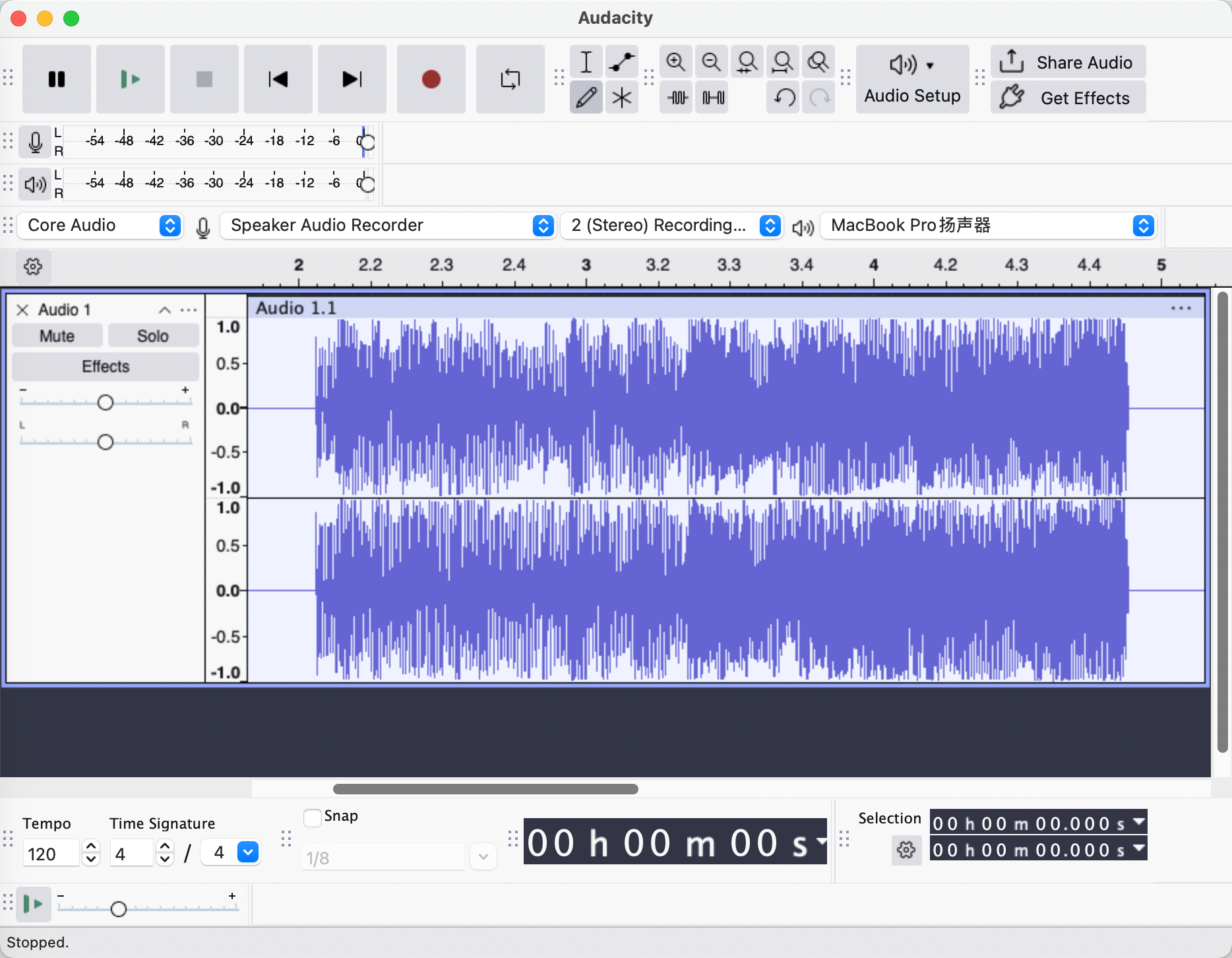
Audacity is an open-source audio editor that can record system audio.
- Download and install Audacity. (Download Audacity here)
- Set the "Audio Host" to Windows WASAPI.
- Choose your playback device (speakers/headphones) as the "Recording Device".
- Hit the Red Record Button, then press Play in iTunes.
- Downside: No automatic tagging. You must manually type Artist/Title for every song.
Option B: GitHub Tools (e.g., gamdl)
Advanced users often search for Apple Music download GitHub projects like gamdl.
- Pros: Free and supports command-line automation.
- Cons: These tools require Python knowledge and complex setup. More importantly, they often break when Apple updates their API, and using them carries a higher risk of temporary account bans compared to real-time recording.
Method 2: The Safe & Easy Way (aBreezeSoft Audio Recorder)
Best for: Audiophiles who want high-quality MP3/ALAC with automatic Album Art and zero risk.
If you are looking for an easy M4P converter that just works, aBreezeSoft Audio Recorder is the industry standard. Unlike risky scripts, it uses legal audio capture technology optimized for Apple Music.
Why it outranks free tools:
- Virtual Sound Card: Accesses the audio stream directly for Lossless (WAV/FLAC/ALAC) capture.
- Smart Tagging: Automatically identifies the song and embeds Lyrics, Title, Artist, Album Art, and Track Number.
- Built-in Web Player Mode: Record directly from the Apple Music web interface without needing the buggy iTunes app installed.
Real Test: Recording Quality & Speed
To prove the difference, we recorded the same 4-minute track from Apple Music Lossless using both methods on a Windows 11 PC. Here are the results:
| Feature | Audacity/GitHub (Free Method) | aBreezeSoft (Pro Method) |
|---|---|---|
| Setup Time | 10-30 Minutes (Configuring Drivers/Scripts) | Instant (Plug & Play) |
| Ease of Use | Low (Requires manual editing or coding) | High (One-click easy M4P converter) |
| ID3 Tags | None (Manual Typing Required) | Full Metadata (Lyrics, Art, Year, etc.) |
| Safety | Variable (GitHub tools can be risky) | 100% Safe (No Account Ban Risk) |
How to Save Apple Music to MP3 on Windows & Mac
Regardless of your operating system, the goal is to create universal files.
For Windows Users
Windows users often struggle with "Stereo Mix" settings. aBreezeSoft solves this by installing a virtual sound driver. This allows you to convert Apple Music to MP3 on Windows without capturing background noise from your microphone or system alerts (like email notifications).
For macOS Users
Recording system audio on a Mac is notoriously difficult due to Apple's security restrictions.
- Apple Music to MP3 Mac Solution: aBreezeSoft includes a specialized virtual driver for macOS (compatible with M1/M2/M3 chips) that bridges this gap, allowing direct audio capture from the "Music" app into a WAV/MP3 container.
Step-by-Step: How to Convert Apple Music to MP3
Follow this guide to build your offline library using the professional method.
Step 1: Installation
Download the software. 👉 Try Free (Windows / macOS)
Step 2: Quality Settings (Crucial for Audiophiles)
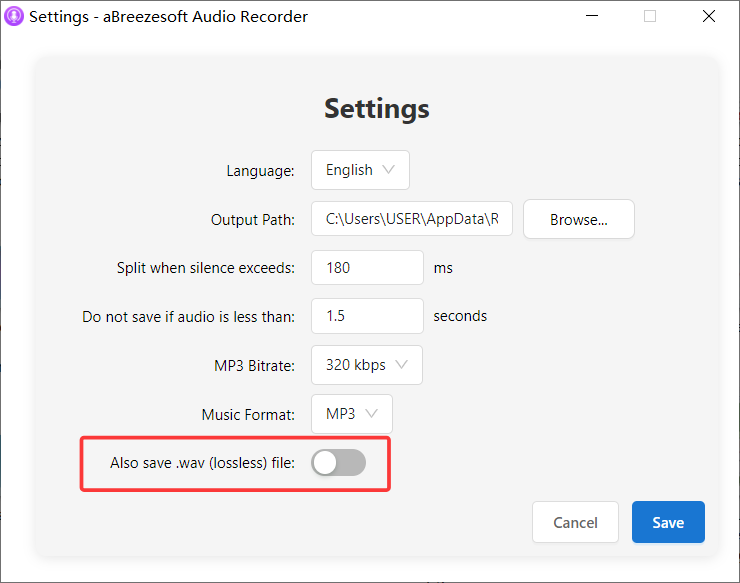
Before recording, go to Settings.
- For Apple Ecosystem (Mac/iPhone): Select ALAC (M4A). This is Apple's native Lossless format. It keeps the quality identical to the source but compresses the file size better than WAV.
- For Universal Use: Select MP3 (320kbps) or FLAC. MP3 is best for car stereos and Android; FLAC is best for archiving.
Step 3: Prepare the Source
To ensure the recording is perfect:
- Open aBreezeSoft and choose your mode: App Mode (records from iTunes/Music app) or Web Player Mode (records from built-in browser).
- Check Quality: Ensure "Lossless Audio" is enabled in your Apple Music playback settings.
- Windows Users: Go to Windows Sound Settings > Device Properties. Set the "Default Format" to 24-bit, 48000 Hz or 192000 Hz (matching your track quality).
- Pro Tip: Turn off "Sound Check" (Loudness Normalization) in the music app settings to capture the full dynamic range.
Step 4: Record & Tag
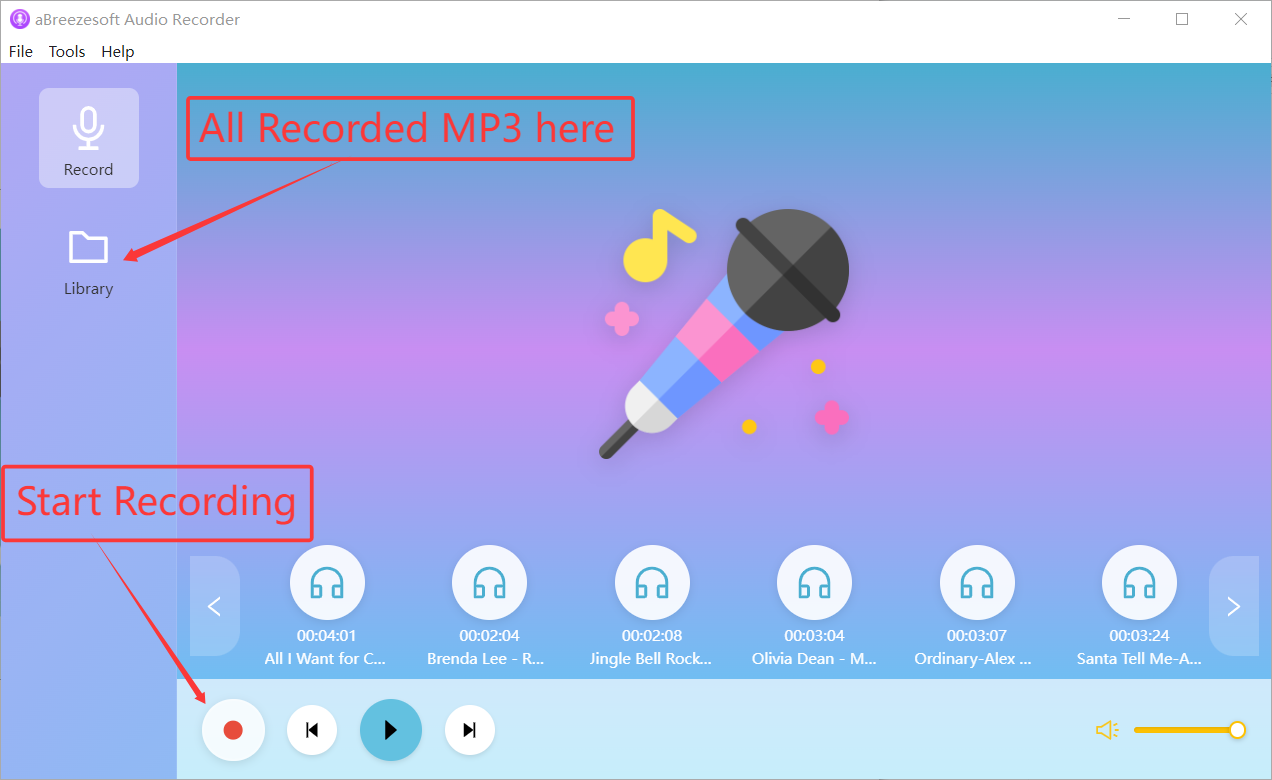
Press Record on aBreezeSoft, then play your playlist. The software will detect the audio stream. You will see it automatically identifying the song and downloading the Album Cover in real-time. It will automatically split tracks when one song ends and the next begins.
FAQ (Frequently Asked Questions)
Q: Are there free Apple Music downloaders on GitHub like gamdl? A: Yes, technical users often search for Apple Music download GitHub projects like gamdl. While powerful, these command-line tools require Python coding knowledge and often break when Apple updates their API. For most users, an easy M4P converter like aBreezeSoft is faster, safer, and more reliable.
Q: Can I use a standard M4A to MP3 converter? A: No. Many users confuse Apple Music files with standard audio. Regular M4A to MP3 converters only work on unprotected files. Apple Music tracks are encrypted M4P, so they will fail in standard converters. You need a dedicated recorder to decrypt and capture the audio.
Q: Can I keep Apple Music songs forever after canceling my subscription? A: Yes. If you download them through the official app, they will disappear. But if you use this recording method to save tracks as local MP3/FLAC files, they are yours forever.
Q: Is it safe for my Apple ID? A: Absolutely. Unlike some "high-speed converters" that manipulate the Apple Music API (which can flag your account for suspicious activity), aBreezeSoft simply records what is playing. It is 100% undetectable and safe.
Conclusion
While Audacity and GitHub tools offer a free path for tech-savvy users, they lack the automation, safety, and metadata features needed for a serious music library.
For users who want to convert Apple Music to MP3/ALAC efficiently—with correct metadata, lyrics, and zero quality loss—aBreezeSoft Audio Recorder is the superior choice. It turns your "rental" music into a permanent, high-fidelity collection that you truly own.