Table of Contents:
- Why You Need an Amazon Music Converter
- Method 1: The 100% Free Way (Audacity)
- Method 2: The Efficient Way (aBreezeSoft)
- Real Test: Recording Quality Comparison
- How to Save on Windows & Mac
- Step-by-Step Guide
- FAQ
- Conclusion
---
Key Takeaways:
- Problem: Amazon/Tidal downloads are encrypted and expire.
- Solution: Recording the stream is the only legal way to own the files.
- Tool: aBreezeSoft Audio Recorder captures lossless audio (FLAC/320kbps).
- Bonus: Works for transferring music to USB, SD Cards, and old iPods.
If you have ever tried to copy your downloaded Amazon Music or Tidal songs to a USB drive or MP3 player, you likely hit a wall. The files are hidden, encrypted, and unplayable outside the official app.
Many users are searching for a reliable Amazon Music Converter or Tidal Downloader to break free from these restrictions.
Quick Answer: The most effective way to save Amazon Music or Tidal to MP3 is by using an audio capture tool. For a 100% free (but complex) solution, you can use Audacity. For an automatic and high-quality solution that preserves ID3 tags, aBreezeSoft Audio Recorder is the recommended choice for 2025.
In this guide, we will compare both methods so you can decide which one fits your needs.
Why You Need an Amazon Music Converter (The DRM Problem)
Before we start, it is important to understand why the "Download" button in the official App is not enough.
When you download a song on Amazon Music Unlimited or Tidal HiFi, you are merely renting a cached file. These files are protected by DRM (Digital Rights Management).
- Rental Status: If you cancel your subscription, the files disappear (confirmed by Amazon Staff). (Amazon Forum: Cancellation Policy)
- Device Lock: You cannot transfer them to an iPod, Sony Walkman, or car stereo.
- Encrypted Format: The files are not standard MP3s; they are proprietary encrypted chunks.
To truly own your music, you need to rip the audio into a standard format like MP3, FLAC, or WAV.
Method 1: The 100% Free Way (Audacity)
Best for: Users with zero budget who don't mind manual work.
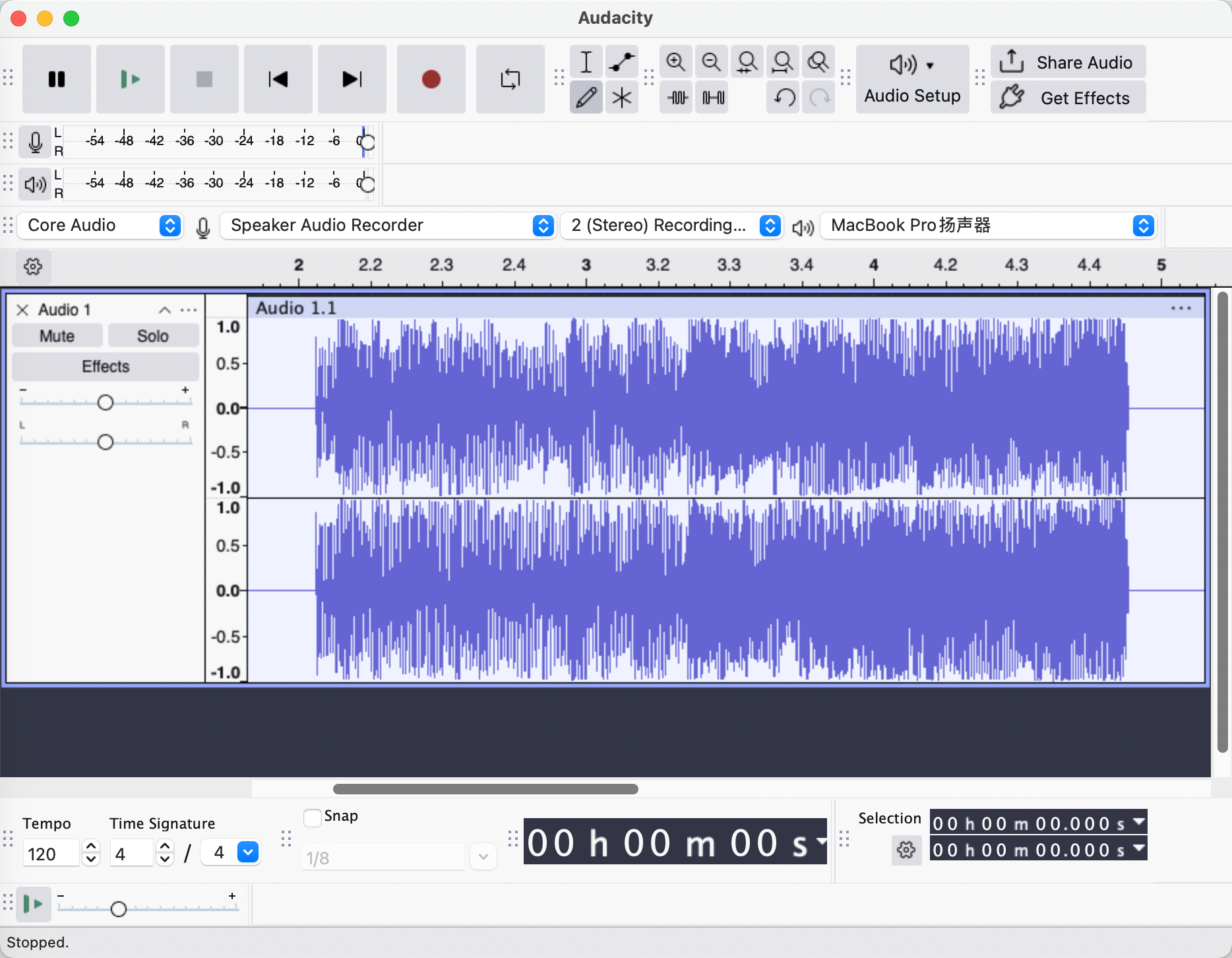
If you want a completely free method and have plenty of time, Audacity is an open-source audio editor that can record system audio.
How to use it:
- Download and install Audacity. (Download Audacity here)
- Set the "Audio Host" to Windows WASAPI.
- Choose your playback device (speakers/headphones) as the "Recording Device".
- Hit the Red Record Button in Audacity, then press Play on Amazon Music.
- When the song ends, stop recording and export as MP3.
The Downsides of the Free Method:
While free, this method has significant drawbacks for archiving music:
- ❌ No Automatic Tagging: You must manually type the Artist, Song Name, and Album Album for every single track.
- ❌ No Silence Detection: You have to manually cut the silence at the beginning and end of every song.
Method 2: The Efficient Way (aBreezeSoft Audio Recorder)
Best for: Audiophiles who want high-quality MP3s with automatic Album Art.
If you value your time and audio quality, aBreezeSoft Audio Recorder is the industry standard for capturing streaming audio. It functions as a smart Amazon Music to MP3 Converter, automating all the tedious steps Audacity requires.
Why it outranks free tools:
Unlike basic recorders, aBreezeSoft accesses the virtual sound card directly. This allows it to capture Lossless audio (WAV) or High-Quality MP3 (320kbps) without background noise.
Real Test: Recording Quality Comparison
To prove the difference, we recorded the same 4-minute track from Amazon Music Unlimited using both methods on a Windows 11 PC. Here are the results:
| Feature | Audacity (Free Method) | aBreezeSoft (Pro Method) |
|---|---|---|
| Setup Time | 5-10 Minutes (Configuring Drivers) | Instant (Plug & Play) |
| Post-Editing | Required (Must manually trim silence) | Zero (Auto-Split Tracks) |
| ID3 Tags | None (Manual Typing Required) | Automatic (Title, Artist, Cover) |
| Batch Recording | Impossible (1 song at a time) | Supported (Record playlists overnight) |
How to Save Amazon Music & Tidal to MP3 on Windows & Mac
Regardless of your operating system, the goal is to create universal files.
For Windows Users
Windows users often struggle with "Stereo Mix" settings. aBreezeSoft solves this by installing a virtual sound driver. This allows you to convert Amazon Music to MP3 on Windows without capturing background noise from your microphone or system alerts.
For macOS Users
Recording system audio on a Mac is notoriously difficult due to Apple's security restrictions.
- Tidal to MP3 Mac Solution: aBreezeSoft includes a specialized virtual driver for macOS that bridges this gap, allowing direct audio capture from the Tidal or Amazon app into a WAV/MP3 container.
Step-by-Step: How to Convert Amazon Music to MP3
Follow this guide to build your offline library using the professional method.
Step 1: Installation
Download the software. 👉 Try Free (Windows / macOS)
Step 2: Quality Settings (Crucial for Audiophiles)
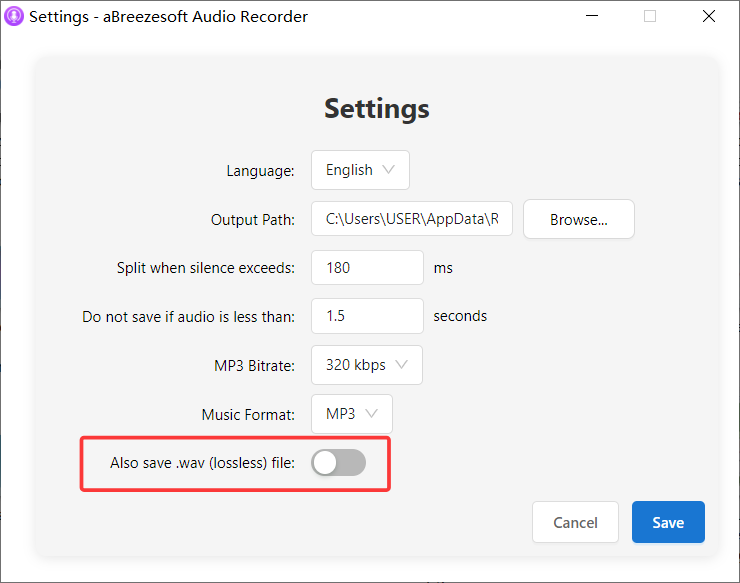
Before recording, go to Settings.
- For Maximum Quality: Select WAV or FLAC. This is critical for preserving the 24-bit/192kHz quality from Amazon Music Ultra HD and Tidal Max (HiRes FLAC). These lossless formats capture every detail of the original master recording.
- For Mobile Use: Select MP3 (320kbps). This is the highest quality standard for MP3, indistinguishable from the original to the human ear.
Step 3: Prepare the Source
To ensure the recording is perfect:
- Open your Amazon Music or Tidal Desktop App.
- Windows Users: Go to Windows Sound Settings > Device Properties. Set the "Default Format" to 24-bit, 192000 Hz (or matching your track quality). This prevents Windows from downgrading the audio before capture.
- Set the volume to 100% in the app.
- Pro Tip: Turn off "Loudness Normalization" in the music app settings to capture the full dynamic range.
Step 4: Record & Tag
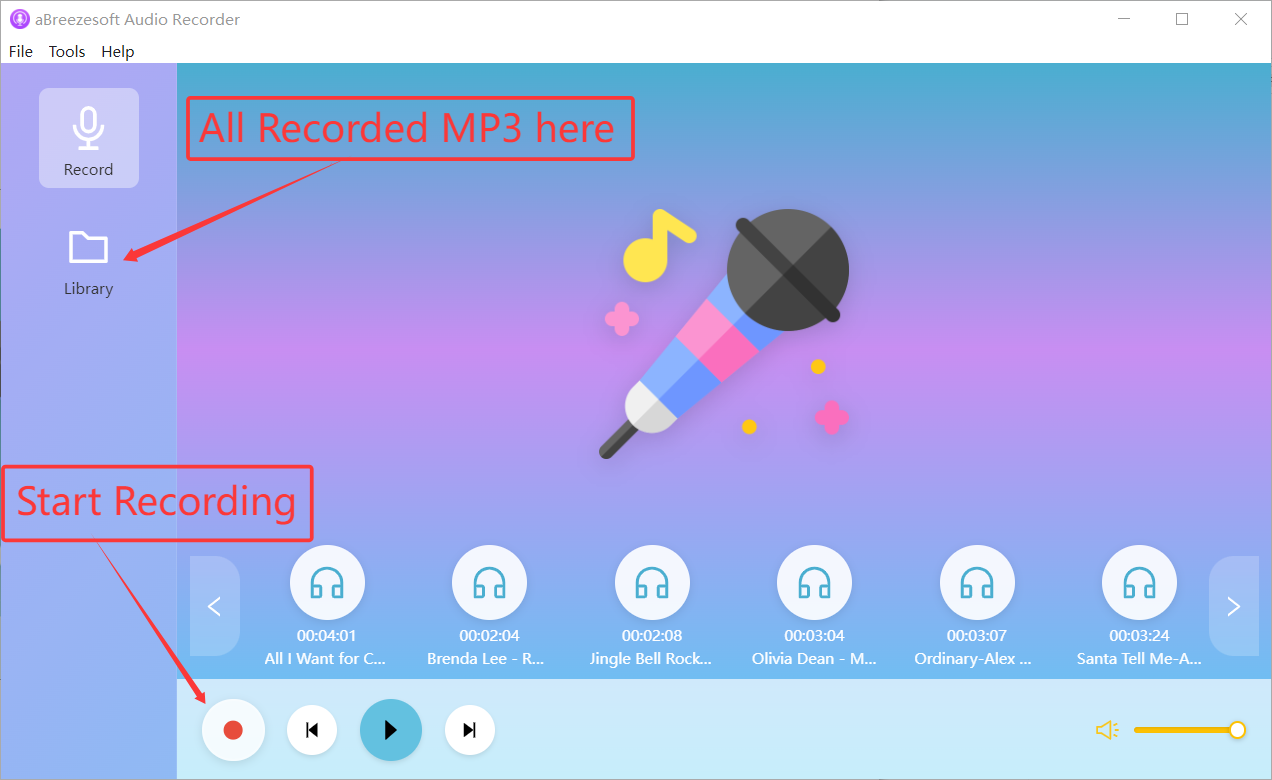
Press Record on aBreezeSoft, then play your playlist. The software will detect the audio stream. You will see it automatically identifying the song and downloading the Album Cover in real-time.
FAQ (Frequently Asked Questions)
Q: Are Amazon Music downloads real MP3 files? A: No. The files you download within the app are encrypted cache files (DRM protected). They cannot be played by other media players. To get real MP3s, you must use a converter or recorder tool.
Q: Can you keep Amazon Music songs after canceling subscription? A: If you rely on the official app downloads, no—your music will lock immediately after your subscription ends. However, if you use this recording method to save tracks as local MP3s, yes, you can keep them forever even after canceling.
Q: Is it legal to use an Amazon Music Converter? A: Recording streaming audio for personal use is widely considered "format shifting" (similar to recording a song from the radio to a cassette tape in the past). It is legal for personal, non-commercial use only.
Q: Can I transfer these files to my iPhone? A: Yes. Once the files are saved as MP3 on your computer, you can use iTunes / Apple Music (or any transfer tool) to sync them to your iPhone, Android, or burn them to a CD.
Conclusion
While Audacity offers a free path for those with patience, it lacks the tools needed for building a serious music library.
For users who want to convert Amazon Music or Tidal to MP3 efficiently—with correct metadata, album art, and zero quality loss—aBreezeSoft Audio Recorder is the superior choice. It turns your "rental" music into a permanent collection that you truly own.