Table of Contents
- Why Some Music Listeners Still Prefer Offline Libraries
- Streaming vs Offline Music Collection
- How Users Organize Spotify Playlists Into Local Music Collections
- Popular Audio Formats for Offline Music Libraries
- Tools That Help Build a Structured Offline Music Collection
- How to Create an Offline Music Library from Spotify - Step-by-Step Guide
- Tips for Managing a Large Offline Music Collection
- Can You Transfer Offline Music Across Devices?
- FAQs
- Conclusion
Introduction
Offline music collection = a personal library of music files stored locally for offline listening without internet or streaming apps.
Spotify makes it easy to stream music anywhere, but many users eventually realize they don't actually own the songs they listen to every day. Offline downloads only work inside the Spotify app, and once your subscription ends or playback issues appear, access to those songs can quickly become limited.
Because of this, some listeners prefer building their own offline music library from Spotify playlists and albums. Local music files are easier to organize, transfer to phones or USB drives, back up permanently, and play without depending completely on Spotify or an internet connection.
👉 You can also learn the step-by-step process of recording Spotify music in high quality in this guide: Spotify music recording guide
Why Some Music Listeners Still Prefer Offline Libraries
Even with the rise of streaming platforms like Spotify, many users still prefer building an offline music library they can fully control. Internet independence is one of the biggest reasons people prefer offline music storage. With downloaded or saved music files, users can listen anywhere during travel, flights, or in areas with weak connectivity without buffering or playback issues.
Another key reason is long-term access. Unlike streaming downloads that depend on subscriptions, local files, such as MP3 or FLAC music files, remain accessible on the device even if platform access changes.
Many users also prefer offline libraries for better device flexibility. Music files can be transferred between phones, laptops, USB drives, and car systems, making them more usable outside a single app environment.
Streaming vs Offline Music Collection
Streaming platforms like Spotify provide access-based listening, where songs are played through the app instead of being fully owned by the user. Even when music is downloaded for offline playback, these files remain tied to the platform and require app authorization. Here are the main differences:
| Feature | Streaming (Spotify) | Offline Music Collection |
|---|---|---|
| Access type | App-based | Local files |
| Internet needed | Yes | No |
| Ownership | No | Yes |
| Transferability | Limited | Full control |
| Longevity | Subscription-based | Permanent |
How Users Organize Spotify Playlists Into Local Music Collections
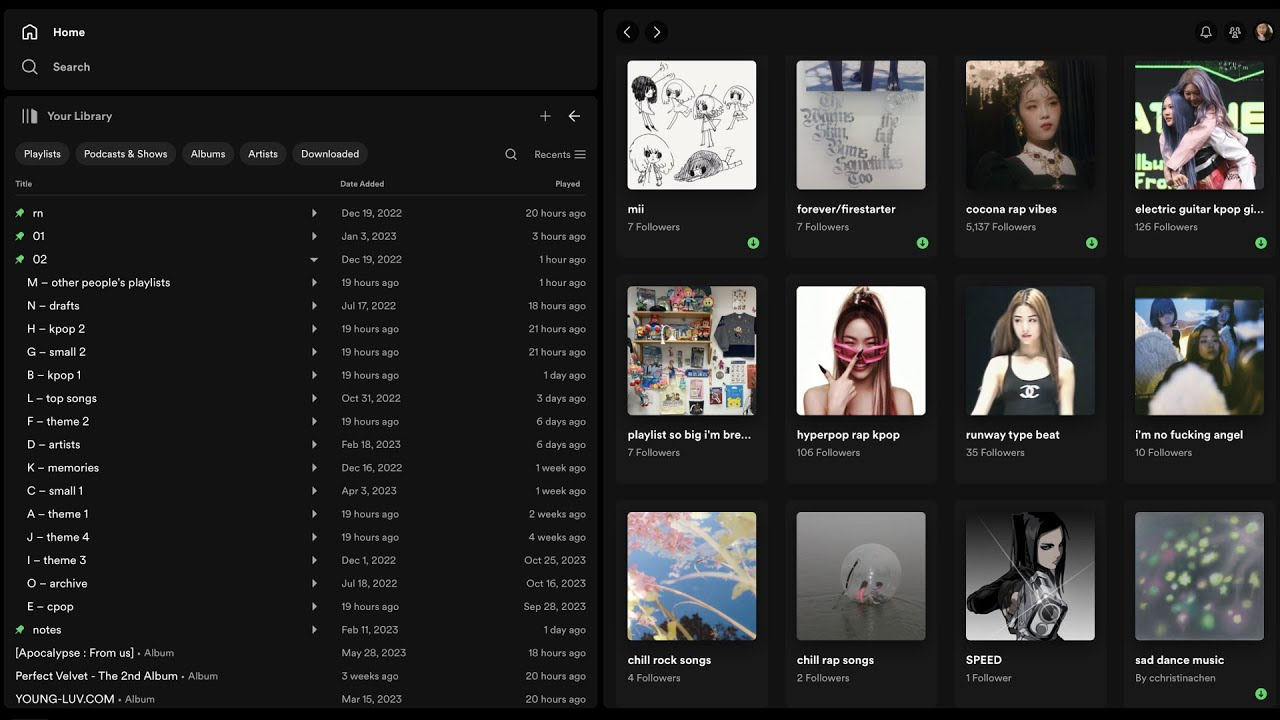
Many users who move from streaming to an offline setup often start by turning their Spotify playlists into a more structured local music library. Instead of relying on an app interface, they organize songs into folders and collections that are easier to manage across devices.
Organizing Music by Mood and Genre
A common approach is sorting music by mood or genre, such as "chill," "workout," "focus," or "party." This makes a local music library more practical for everyday listening compared to a single mixed playlist inside a streaming app.
Using Local Folders for Better Structure
Many users prefer storing music in local folders on their computer or an external drive. This allows them to separate playlists into dedicated directories, making it easier to access songs without opening a music streaming application.
Tagging Songs for Easy Search
Some listeners also rely on file tagging to manage their offline music collection. Tags like artist name, album, or genre help improve searchability when the library grows over time.
Creating Backups for Music Safety
To avoid losing their collection, users often create backups of their local music files on external drives or cloud storage. This ensures long-term access even if a device fails or storage is cleared.
Popular Audio Formats for Offline Music Libraries
When building an offline music library, choosing the right audio format helps balance sound quality, storage size, and device compatibility. Different formats are used depending on how users manage their local music collection.
MP3 – Most Compatible Format
MP3 is the most widely used format for offline music files because it works on almost all devices, including phones, computers, and car systems. It offers a good balance between file size and audio quality, making it ideal for everyday listening.
FLAC – High-Quality Lossless Format
FLAC is a lossless audio format used in music libraries where preserving original sound quality is important. It delivers higher fidelity but requires more storage space than MP3.
WAV – Uncompressed Audio Format
WAV files store uncompressed audio, offering excellent quality but significantly larger file sizes. It is often used for archival or professional audio storage.
MP3 is the most storage-efficient and widely compatible format, while FLAC and WAV prioritize higher audio quality but may require better device support and more storage space.
Tools That Help Build a Structured Offline Music Collection
Building a well-organized offline music library is not just about saving songs; it also depends on how well your audio files are structured, tagged, and managed over time. This is where dedicated tools can help simplify the process by handling metadata, track separation, and file organization automatically.
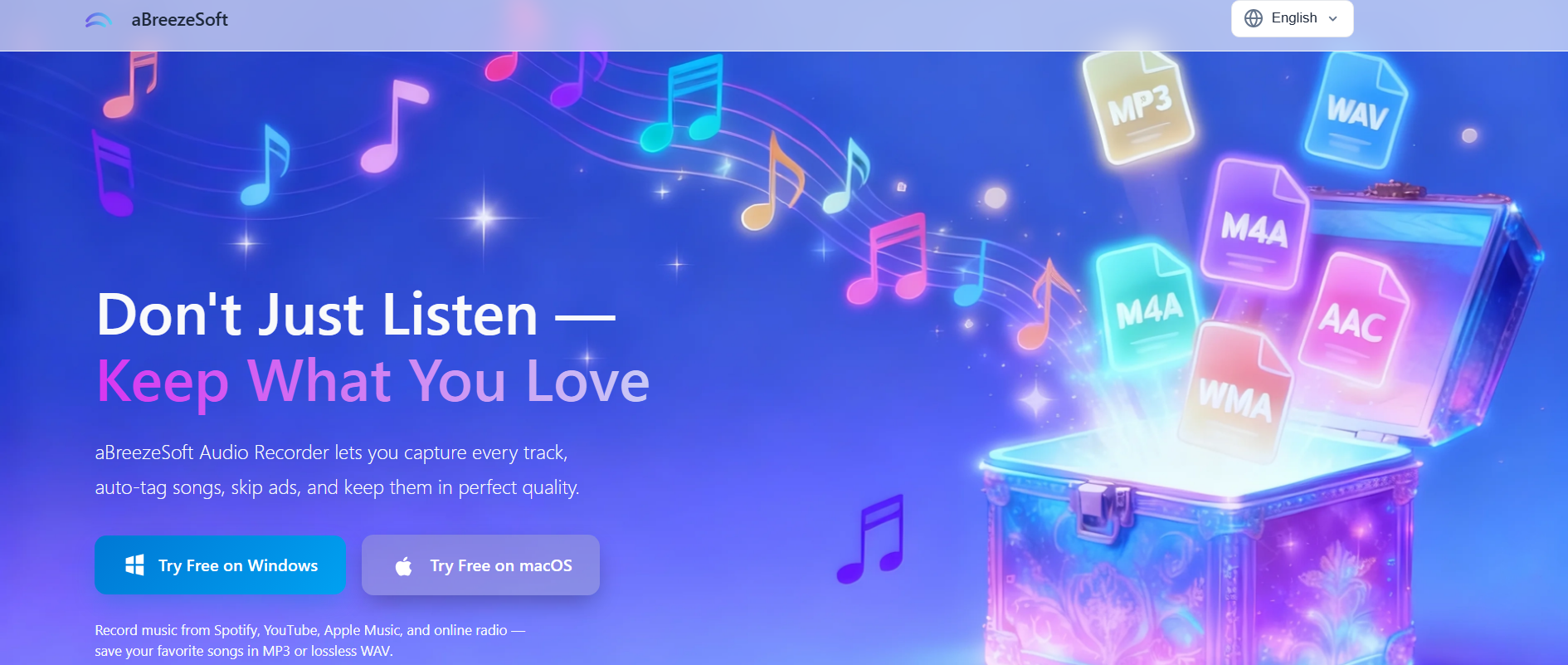
One example is aBreezeSoft Audio Recorder, which is designed to capture streaming audio and help users create a structured personal music library. It records music in real time while automatically organizing tracks, adding metadata, and exporting files in widely supported formats like MP3 and FLAC. Instead of manually sorting songs after recording, users can focus on building a clean offline music collection with properly labeled tracks, consistent file formats, and organized playlists.
Key Features aBreezeSoft for Music Library Management
✅ High-Quality Audio Recording: Supports recording in formats like MP3, FLAC, WAV, and other common audio types while maintaining stable sound quality during playback.
✅ Automatic Metadata Tagging: Automatically detects and adds song information such as title, artist name, album, and cover art to help keep your music library organized.
✅ Track Separation for Playlists: Individually detects and splits songs during recording, making it easier to manage full playlists as separate files.
✅ Ad-Free Recording Experience: Removes interruptions from audio ads or gaps during streaming playback for cleaner recordings.
✅ Flexible Export and Editing Options: Allows users to export audio in multiple formats and perform basic edits like trimming or adjusting volume for better library control.
How to Create an Offline Music Library from Spotify - Step-by-Step Guide
Step 1: Download and install aBreezeSoft Audio Recorder on your Windows or Mac computer. Once the installation is complete, launch the application to begin setting up your Spotify music recording.
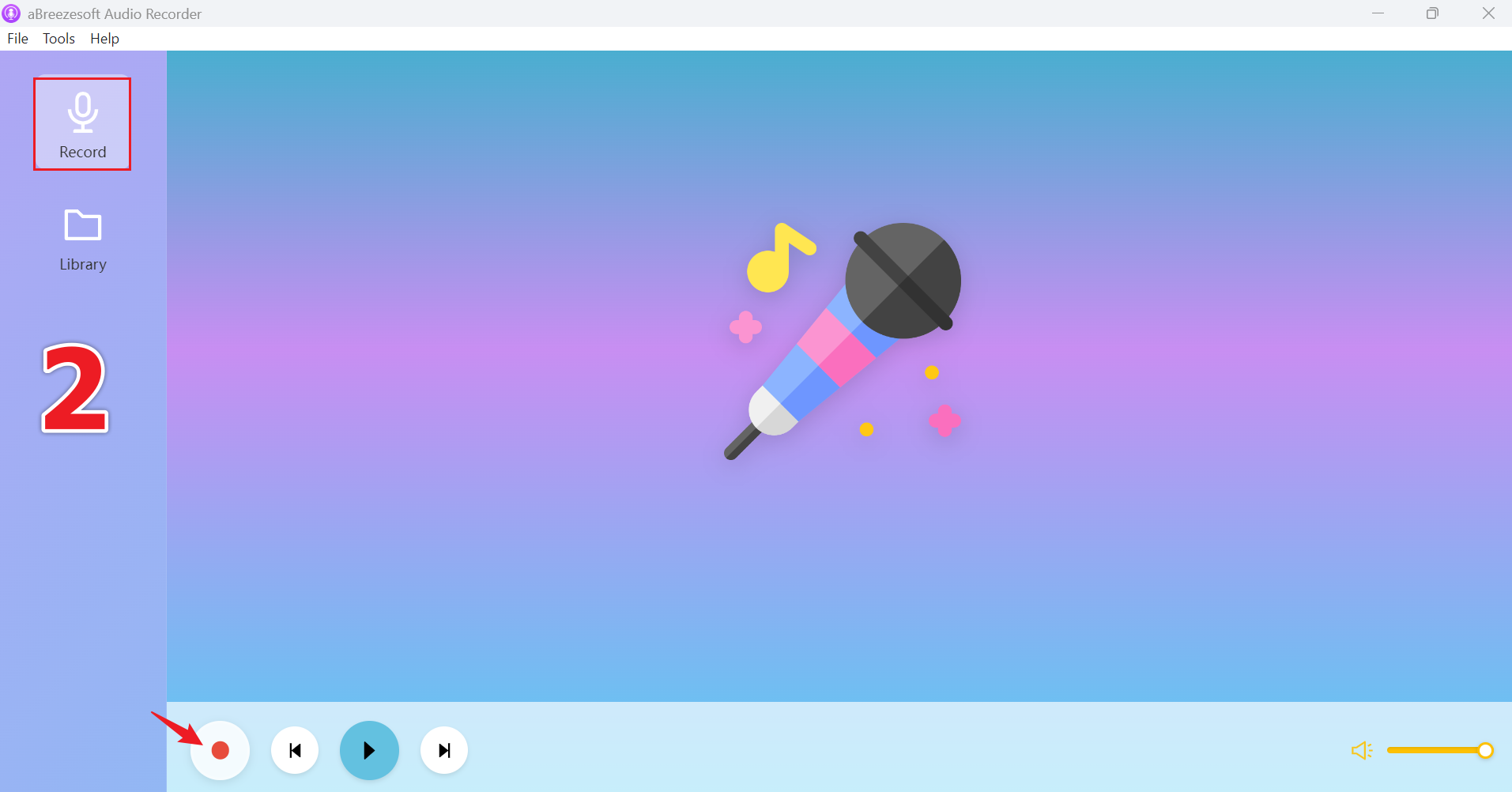
Step 2: After launching the software, you will see the main dashboard. Navigate to the "Record" tab from the left sidebar or top menu, then click the red Record button to prepare the tool for capturing audio from your system.
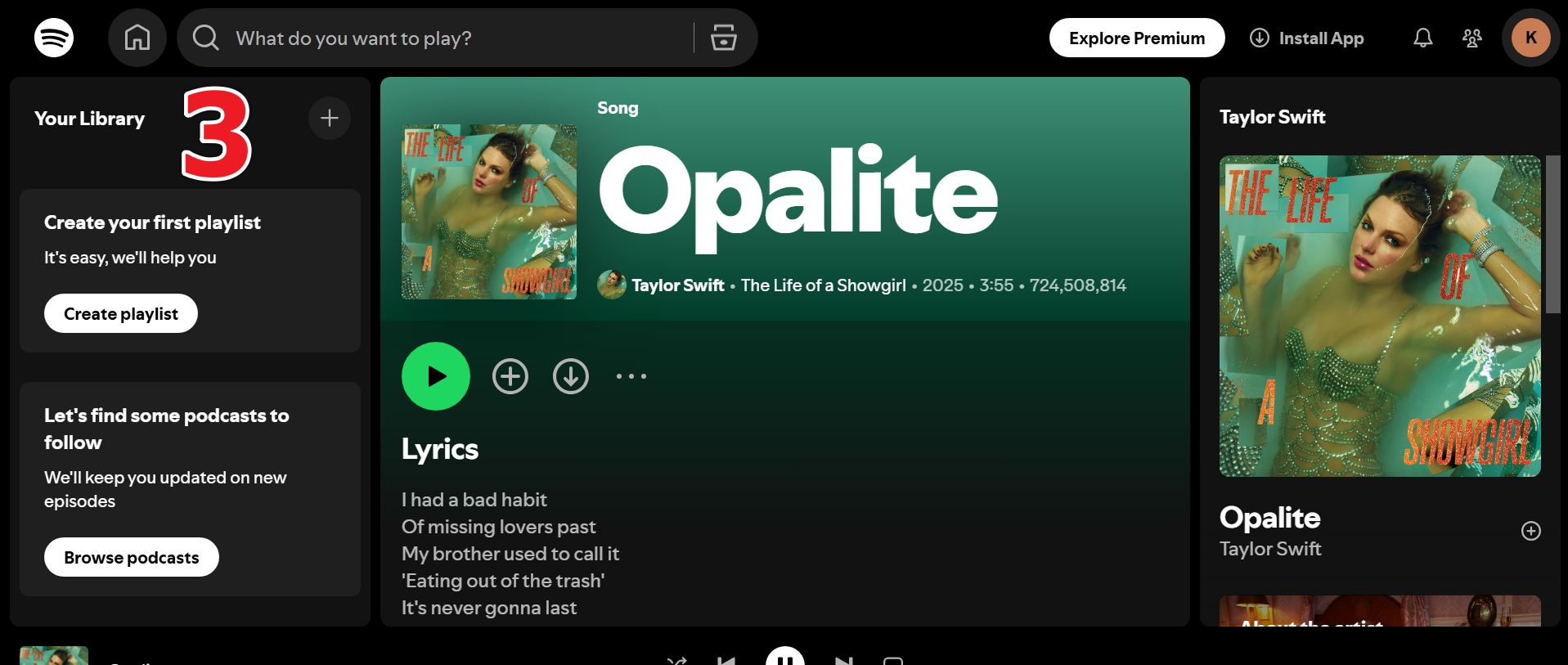
Step 3: Now open Spotify on your computer and start playing the song, playlist, or album you want to record. The software will automatically capture Spotify audio in real time while it plays.
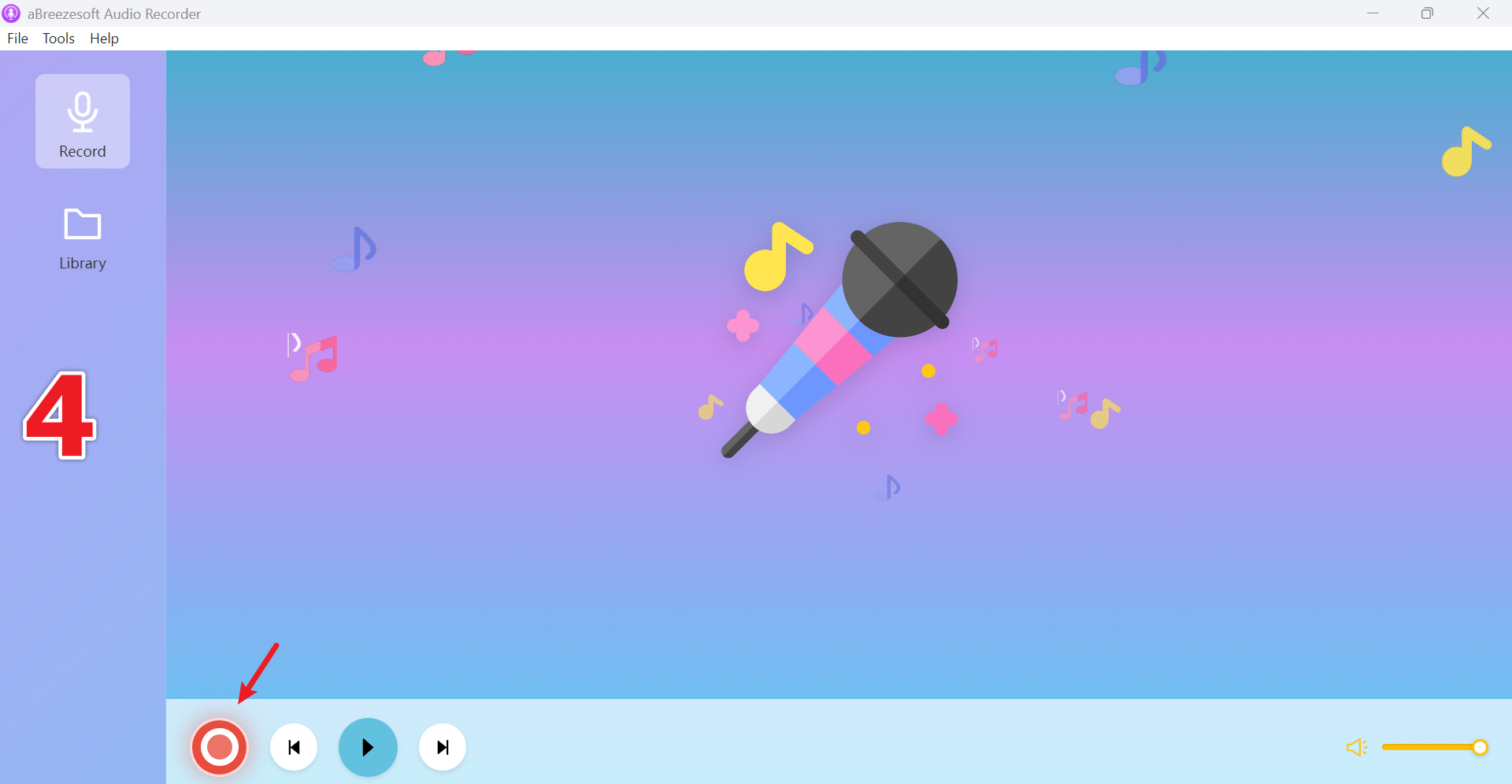
Step 4: Once your music session is complete, stop the recording. Your recorded Spotify songs will be automatically saved and organized inside the library for offline access.
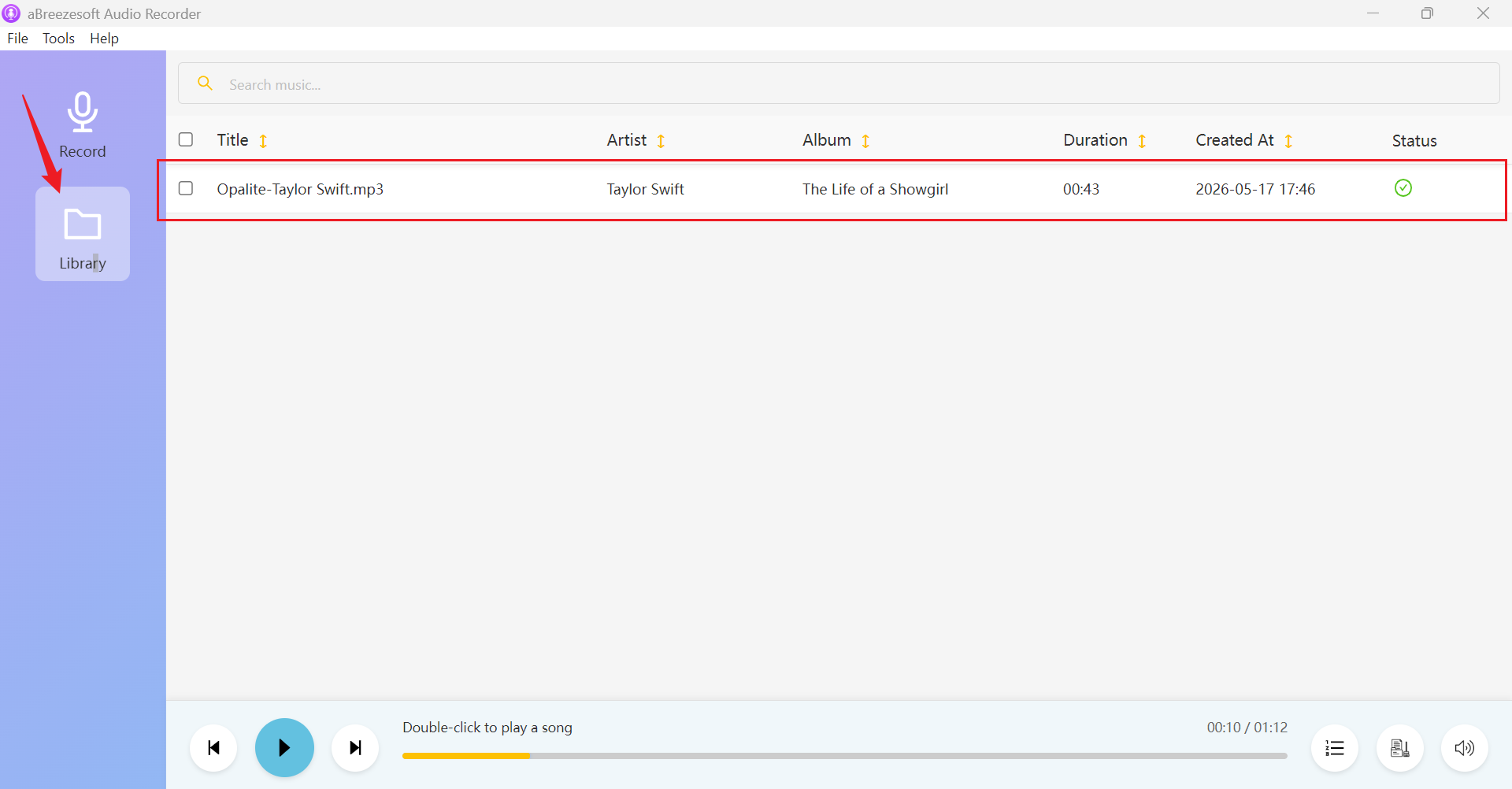
Step 5: Go to the Library section to view all recorded Spotify tracks. To find the saved files on your computer, right-click any song and select "Open File Location" to access your offline music files directly.
Tips for Managing a Large Offline Music Collection
As an offline music collection grows, proper organization becomes essential to keep it easy to manage, search, and maintain over time. A structured approach helps avoid clutter and improves access across different devices.
1. Use a Consistent Naming Structure
Keep a clear naming format such as artist – song title – album. This makes your offline music library easier to search and keeps files organized as the collection grows.
2. Organize Music into Folders
Structure your music into folders based on genre, mood, or artist. This keeps your music collection clean and improves navigation on both computers and mobile devices.
3. Create Regular Backups
Back up your offline music library using external drives or cloud storage to protect against accidental data loss or device failure.
4. Use External Drives for Storage Expansion
External SSDs or hard drives are useful for storing large music collections when internal device storage becomes limited.
5. Keep Metadata and Album Artwork Organized
Proper tagging (artist, album, genre) and album artwork make your music library more structured and visually easier to browse.
6. Remove Duplicate Files
Regularly cleaning duplicate tracks helps save storage space and keeps your offline music collection efficient and well-organized.
Can You Transfer Offline Music Across Devices?
Yes, offline music files can be easily transferred across multiple devices depending on the file format and storage method. Unlike streaming downloads, local music files give users full flexibility to move their music collection between different platforms and devices without restrictions.
Most users transfer music to smartphones using USB cables, file-sharing apps, or cloud storage services, allowing offline playback without an internet connection. Similarly, many people store their offline music library on USB drives or external hard drives, which can then be connected to different computers or systems whenever needed.
Offline music files are also widely compatible with car audio systems, where MP3 files stored on USB or SD cards can be played directly without requiring any additional apps. In addition, tablets and dedicated media players support local music transfers, making it easy to carry a personal music collection for portable listening.
FAQs
What is an offline music collection from Spotify?
An offline music collection from Spotify refers to a personal music library created by organizing Spotify songs into local audio files that can be stored and played without using the Spotify app or internet connection.
Can Spotify music be saved permanently as local files?
Spotify music is primarily designed for streaming access. However, many users create an offline music collection by saving tracks as local audio files such as MP3 or FLAC for long-term personal listening.
How do I build an offline music collection from Spotify?
Most users build an offline music collection from Spotify by organizing playlists into local audio files, storing them in formats like MP3 or FLAC, and sorting them into structured folders for long-term access.
What is the best format for an offline music collection?
MP3 is the most widely compatible format for offline music collections, while FLAC is preferred for higher audio quality. WAV is used when uncompressed audio storage is required.
How much storage does an offline music collection need?
Storage requirements depend on audio quality and file format. A large offline music collection can range from several gigabytes to multiple terabytes depending on how many songs are stored.
Can I organize Spotify songs into folders after saving them?
Yes, once Spotify songs are saved as local files, they can be organized into folders by artist, genre, album, or playlist structure for easier management.
Conclusion
Building an offline music collection from Spotify gives users more control over how they store, organize, and enjoy their favorite tracks. Instead of depending entirely on streaming access, a local music library offers permanence, flexibility, and the ability to access songs across multiple devices without restrictions. For users who want a simpler way to create and manage an offline music library, aBreezeSoft Audio Recorder can help streamline the process by capturing high-quality audio, organizing tracks automatically, and supporting multiple formats for a clean music collection.