Table of Contents
- Can You Record Music from Spotify?
- Why Most Spotify Recording Methods Reduce Audio Quality?
- Best Way to Record Spotify Music Without Quality Loss
- Key Features
- How to Record Music from Spotify Premium & Free - Step-by-Step
- Best Audio Settings for Spotify Recording
- Is It Legal to Record Spotify Music?
- FAQs
- Conclusion
Introduction
Spotify allows users to stream millions of songs, but downloading them as local MP3 files is not officially supported. Whether you use Spotify Premium or the free version, offline music stays locked inside the app and cannot be played freely on other devices.
That's why many users search for ways to record Spotify music using a Spotify audio recorder. While some methods reduce sound quality or fail to detect tracks properly, a dedicated tool allows you to record Spotify songs in high quality while preserving the original audio output. In this article, we will share how to record Spotify music from both Premium and Free accounts, save tracks in high quality, and avoid common recording issues on Windows.

Can You Record Music from Spotify?
Yes, it is possible to record music from Spotify using audio recording software. Instead of downloading files directly, these tools capture the audio while it is playing and save it in formats like MP3, WAV, or FLAC. This method works on both Spotify Free and Premium accounts.
Recording is different from downloading because Spotify uses DRM protection to encrypt its music files. Rather than accessing these files, recording software captures the audio output during playback and saves it locally. This allows users to keep songs for personal offline listening, but recorded files should not be shared or used commercially.
Why Most Spotify Recording Methods Reduce Audio Quality?
Many users try to record Spotify music using free screen recorders, browser extensions, or online audio capture tools. Unfortunately, most of these methods create poor-quality recordings and an unstable experience. Here are the main reasons why Spotify recording quality drops with basic recording methods:
Screen Recorders Compress Audio
Most screen recording tools are designed for video capture rather than high-quality music recording. Because of this, Spotify audio is often compressed during export, resulting in a lower bitrate and reduced sound clarity.
Browser Extensions Are Unreliable
Some Spotify recording extensions stop working after browser or Spotify updates. Others may fail to detect tracks correctly or produce recordings with playback glitches.
Online Tools Reduce Bitrate Quality
Many online Spotify recorders compress audio files to reduce processing load on their servers. This can noticeably affect audio quality, especially when recording music in MP3 format.
Background Sounds Get Captured
Basic audio recorders sometimes capture notifications, keyboard sounds, or other system audio while recording Spotify playback, which reduces listening quality.
Missing Metadata and Track Information
Free recording methods often fail to preserve ID3 tags such as song title, artist name, album name, and cover art, making music libraries difficult to organize later.
Because of these limitations, many users prefer dedicated Spotify music recording software that can capture streaming audio more accurately while maintaining better sound quality and metadata support.
Best Way to Record Spotify Music Without Quality Loss
The most reliable way to record Spotify music without losing audio quality is by using a dedicated tool like aBreezeSoft Audio Recorder. It is designed to capture streaming audio directly from your computer and save it in high-quality formats such as MP3, WAV, and FLAC, allowing users to store Spotify music locally.
aBreezeSoft Audio Recorder records live playback directly from your system output. It extracts audio in real time while maintaining consistent streaming quality throughout the recording process. It captures sound directly from the output source instead of relying on screen recording or browser extensions, which helps maintain consistent audio quality. The tool also supports automatic track separation, ID3 tagging, and ad skipping, making it easier to organize recorded music. It is suitable for both Spotify Free and Premium users who want a stable method to save music offline.
Key Features
- Captures system audio directly from Spotify and other streaming platforms
- Records music in multiple formats, including MP3, FLAC, WAV, M4A, AAC, OGG, WMA, AIFF, Opus, and M4R
- Supports up to 320kbps high-quality audio recording
- Automatically detects and splits individual tracks during recording
- Adds ID3 tags, including song title, artist name, and album information
- Removes audio ads during recording for uninterrupted playback
- Includes lossless editing tools for trimming and adjustments
How to Record Music from Spotify Premium & Free [Step-by-Step]
Step 1: Download and install aBreezeSoft Audio Recorder on your Windows or Mac computer. Once installation is complete, launch the application.
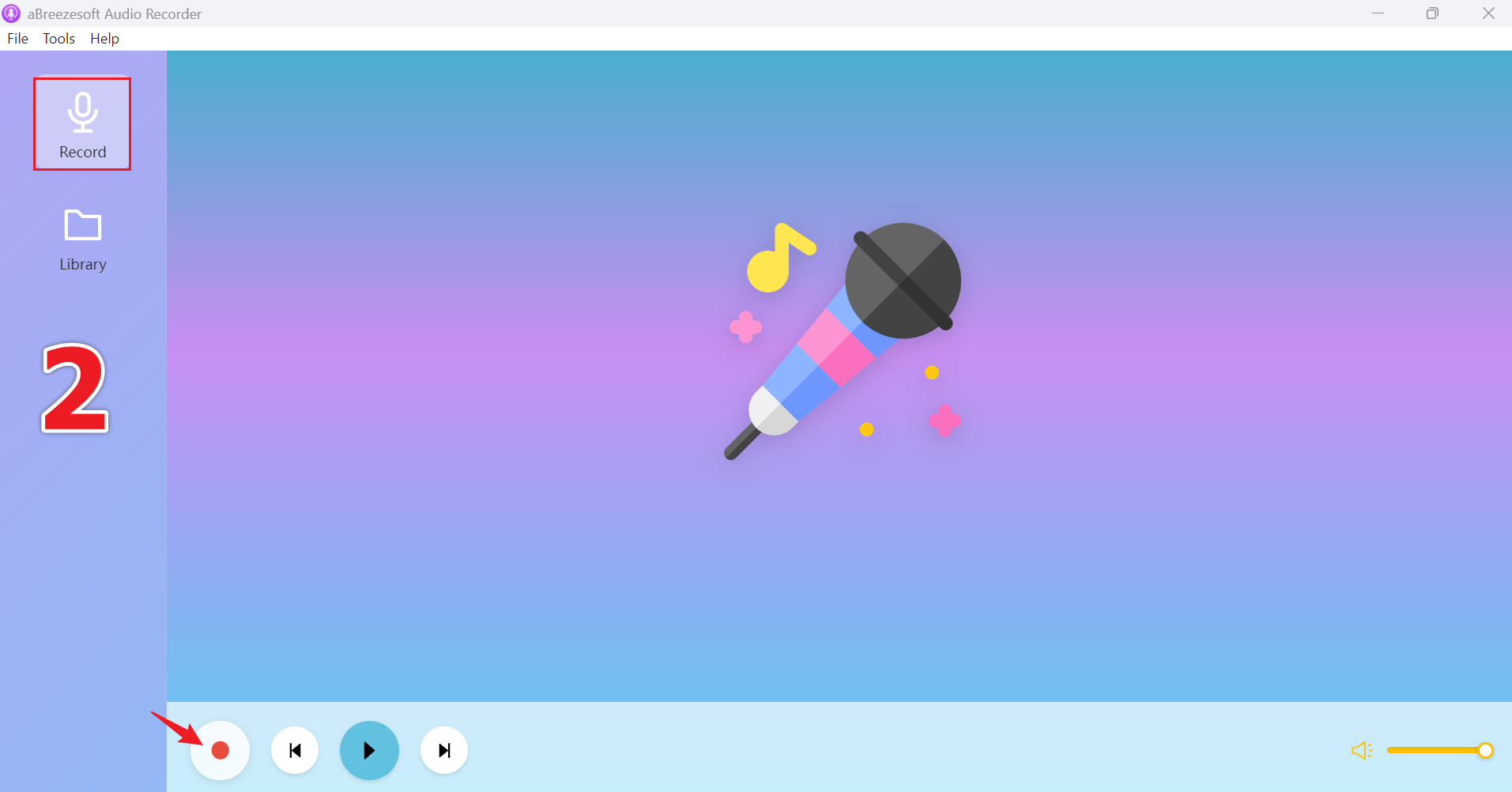
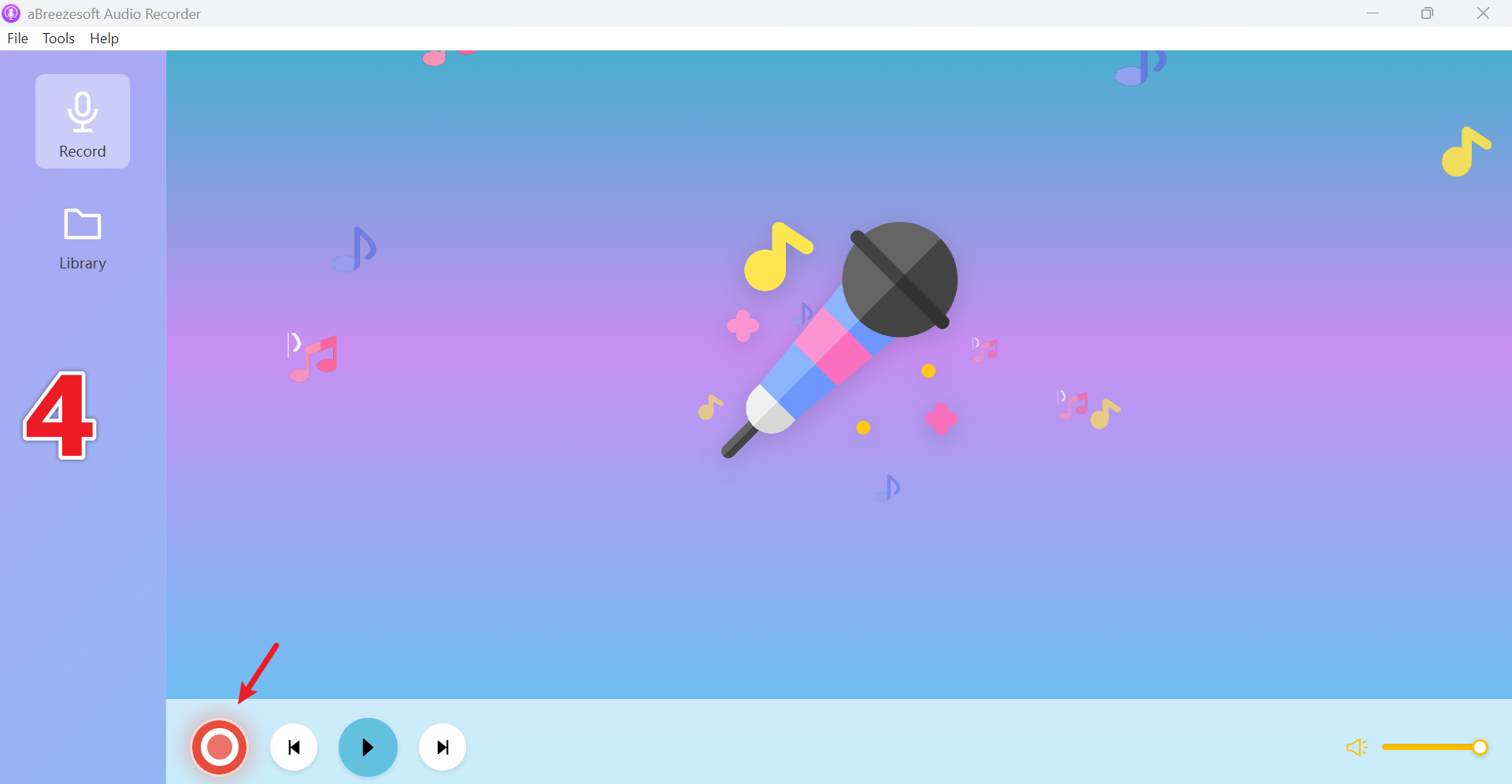
Step 2: After opening the software, you will see the main interface. Go to the "Record" tab from the left sidebar or top menu, then click the red Record button to start capturing audio from your computer.
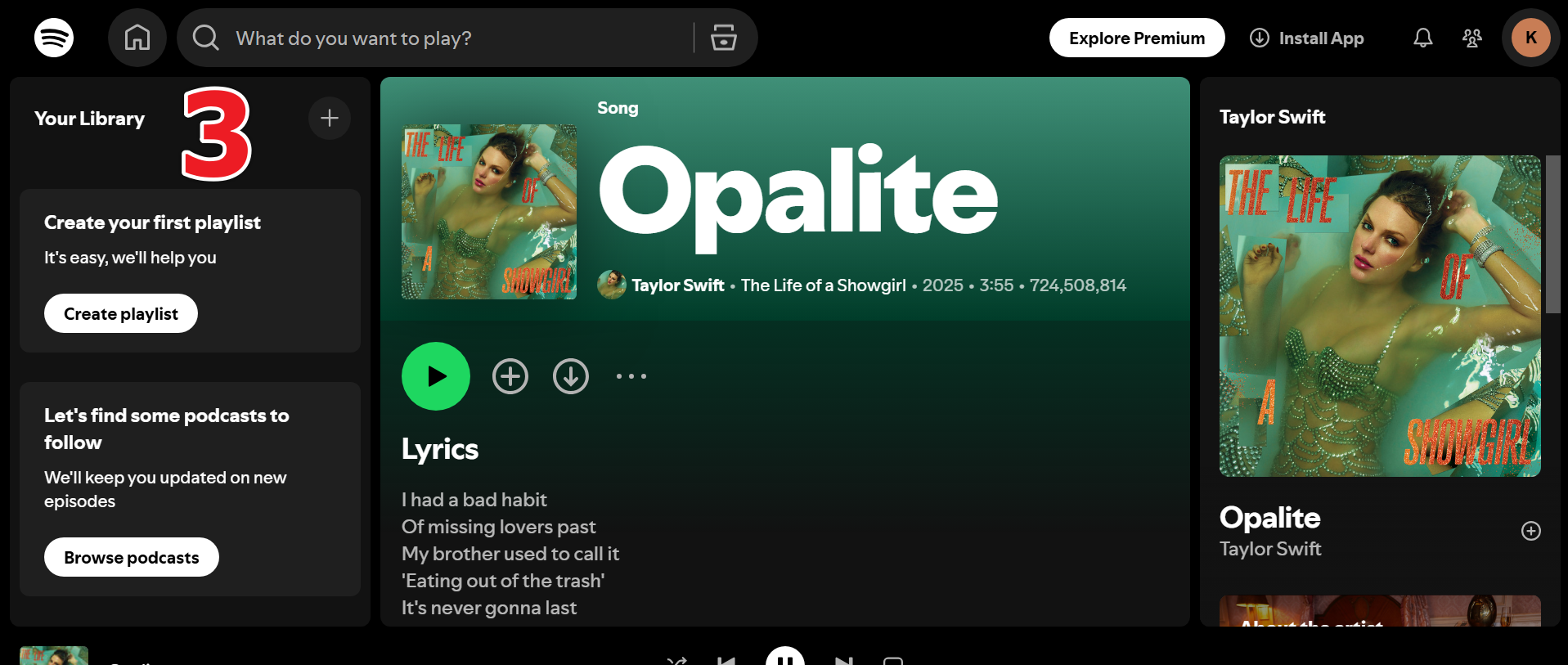
Step 3: Now, open Spotify on your computer and play the song, playlist, or album you want to record. The recorder will automatically capture Spotify audio in real time.
Step 4: Once finished, stop the recording. Your recorded Spotify songs will be automatically saved to the library for offline playback.
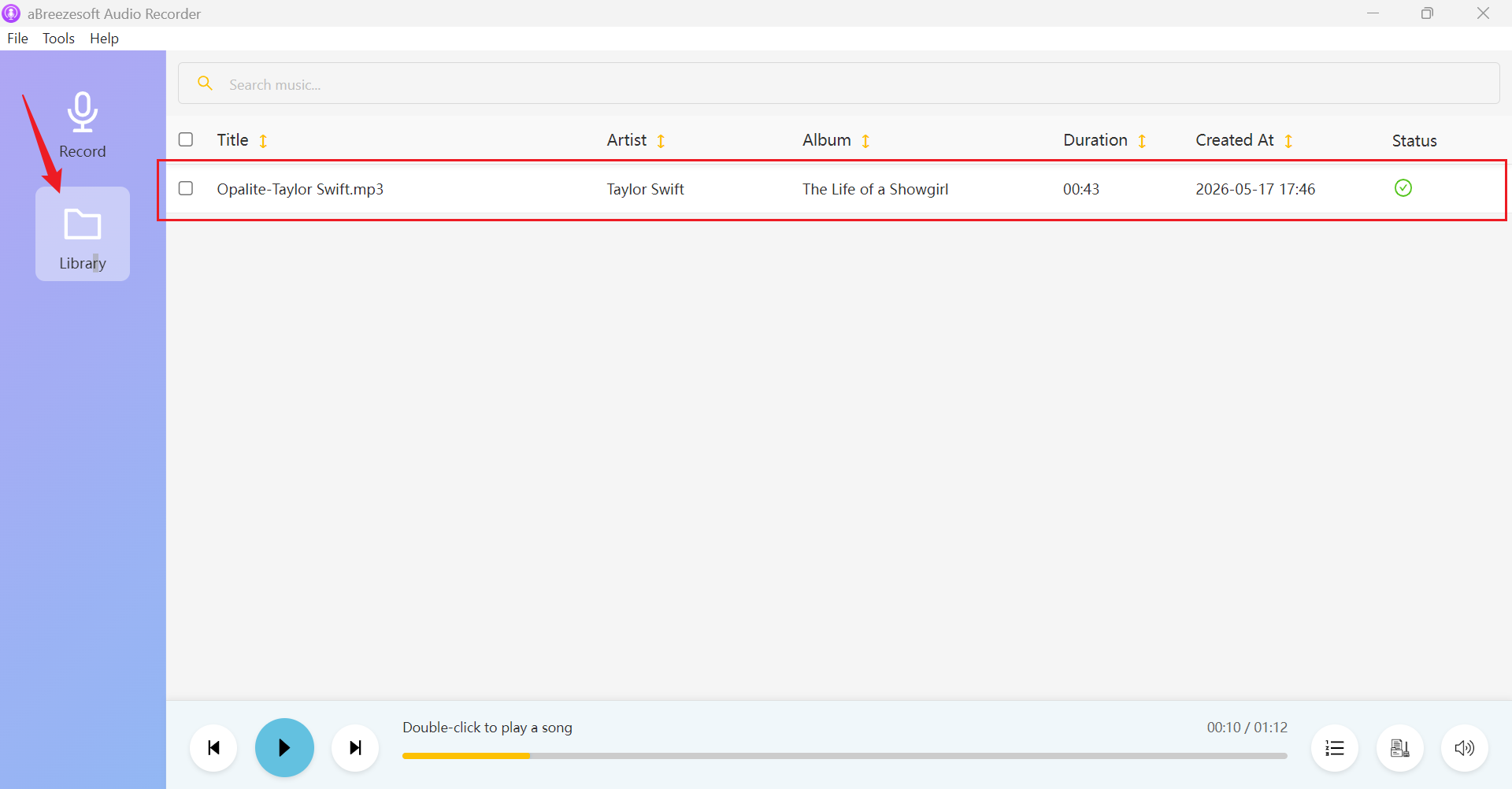
Step 5: Go to the Library section to view all recorded songs. To locate files on your computer, right-click a track and select "Open File Location."
Best Audio Settings for Spotify Recording
Choosing the right audio settings can make a noticeable difference when recording Spotify music. For the best results:
- Use 320kbps MP3 for high-quality everyday listening
- Use FLAC or WAV for lossless audio recording
- Keep Spotify playback stable during recording
- Close unnecessary background applications
- Use a standard sample rate like 44.1kHz for music recording
Is It Legal to Record Spotify Music?
Recording Spotify music is generally discussed in the context of personal listening and offline use. However, Spotify content is protected by copyright, and users should avoid redistributing, uploading, or sharing recorded files publicly or commercially. Laws may vary depending on your country, so it is always recommended to use recorded audio responsibly and in accordance with local regulations.
FAQs
Does Spotify detect recording?
Most dedicated audio recorders, including aBreezeSoft Audio Recorder, capture system audio during playback rather than interacting directly with Spotify files.
Can I record Spotify playlists?
Yes, you can record Spotify playlists, albums, podcasts, and individual songs while they are playing on your computer.
Can I transfer recorded Spotify songs to my phone?
Yes, recorded Spotify songs can be transferred to phones, tablets, USB drives, and other supported devices for offline listening.
Does this method work on Windows 11?
Yes, tools like aBreezeSoft Audio Recorder support Windows 11 as well as older Windows versions and macOS systems.
Can I save Spotify music as MP3?
Yes, aBreezeSoft Audio Recorder supports recording Spotify music in MP3 along with other audio formats such as WAV, FLAC, AAC, and M4A.
Conclusion
Recording Spotify music allows users to keep their favorite songs available for offline listening without depending entirely on the Spotify app. With the right audio recorder and settings, it is possible to save Spotify tracks in high quality and play them freely across different devices.
Tools like aBreezeSoft Audio Recorder make the process easier by supporting high-quality recording, automatic track detection, metadata preservation, and multiple output formats. Whether you use Spotify Free or Premium, a dedicated recorder provides more flexibility and control over your music library.