Table of Contents:
- Why Extract Audio from Video?
- Method 1: The Free & Safe Way (VLC Media Player)
- Method 2: Online Converters (Convenient but Risky)
- Real Test: VLC vs. Online Tools
- Step-by-Step Guide
- FAQ
- Conclusion
Key Takeaways:
- Problem: Video files (MP4, MKV) are large and cannot be played on audio-only devices or in the background on some phones.
- Solution: Extracting the audio track to MP3 is the best way to listen to lectures, podcasts, or music videos on the go.
- Tool: VLC Media Player is the industry standard for free, local, and unlimited conversion.
- Bonus: We also discuss a solution for recording streaming audio when you don't have a video file.
If you have ever tried to listen to a downloaded TED Talk, a concert recording, or a YouTube video on a device that only supports music, you know the struggle. Keeping the screen on just to listen to audio drains your battery, and video files take up massive amounts of storage.
Many users turn to "Online MP3 Converters," but these often come with file size limits, popup ads, and privacy concerns.
Quick Answer: The most effective way to convert video to MP3 is using VLC Media Player. It is open-source, completely free, and processes files locally on your computer, ensuring 100% privacy and no file size limits.
Why Extract Audio from Video?
Before we dive into the "how-to," here is why converting your library to MP3 is a smart move in 2026:
- Storage Efficiency: A 1080p video file can easily be 1GB. The extracted high-quality MP3 is usually less than 10MB.
- Battery Life: Playing video requires your screen and GPU to be active. Audio playback consumes a fraction of that power.
- Compatibility: Old car stereos and specialized Hi-Fi players often support MP3/FLAC but not MP4 video containers.
Method 1: The Free & Safe Way (VLC Media Player)
Best for: Users with video files already on their computer who want a free, unlimited solution.
VLC Media Player is famous for playing any file type, but its hidden "Convert/Save" feature is a powerhouse.
Why VLC wins:
- Zero Cost: No premium versions, no watermarks.
- Privacy: Everything happens offline. You never upload your personal videos to a cloud server.
- Versatility: It handles AVI, MP4, MKV, MOV, and almost any other format you throw at it.
Method 2: Online Converters (Convenient but Risky)
Best for: One-off conversions of very small files on a public computer.
There are dozens of "Video to MP3" websites.
- Pros: No software installation required.
- Cons: Aggressive ads; strict file limits (often capped at 100MB); slow upload/download speeds; potential privacy risks with personal videos.
Real Test: VLC vs. Online Tools
We tested converting a 500MB MP4 lecture recording on a Windows 11 PC.
| Feature | VLC Media Player (Recommended) | Online Converters |
|---|---|---|
| Speed | Fast (10-20 seconds via local transcoding) | Slow (Dependent on Upload Speed) |
| File Limit | Unlimited (Supports 4K/8K source files) | Usually capped at 100MB - 500MB |
| Quality | Adjustable (Up to 320kbps / FLAC) | Often fixed or heavily compressed |
| Safety | 100% Safe (Offline) | High Risk (Files uploaded to cloud) |
Step-by-Step: How to Convert Video to MP3 with VLC
Follow this guide to turn your video collection into an audio library.
Step 1: Installation
Ensure you have VLC installed. Download VLC (Windows / macOS)
Step 2: Import the Video
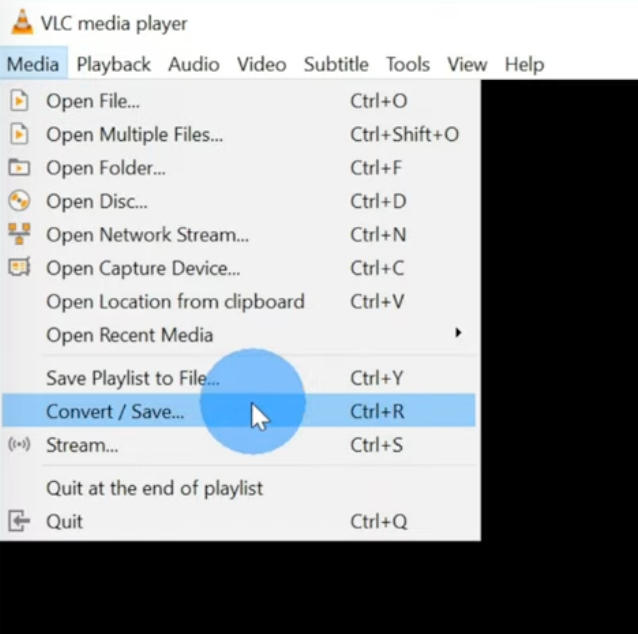
- Open VLC Media Player.
- Go to Media > Convert / Save (Shortcut:
Ctrl+Ron Windows,Cmd+Shift+Ron Mac). - Click the Add button and select the video file you want to convert.
- Click the Convert / Save button at the bottom.
Step 3: Configure Output Settings (Crucial)
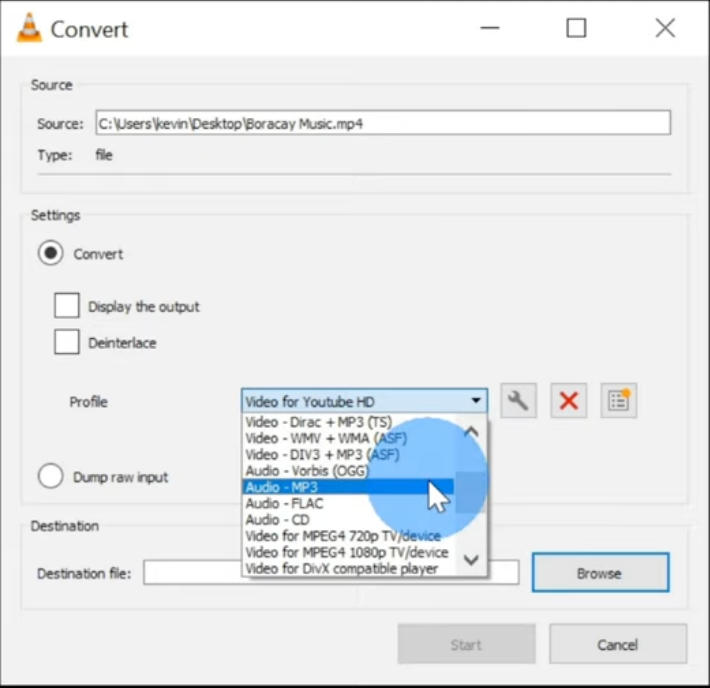
This determines your audio quality.
- In the "Profile" dropdown, select Audio - MP3.
- Pro Tip: Click the Wrench Icon (Settings) next to the profile.
- Go to the Audio codec tab.
- Change the Bitrate to 192 kb/s or 320 kb/s for better quality (default is often low).
- Click Save.
Step 4: Start Conversion
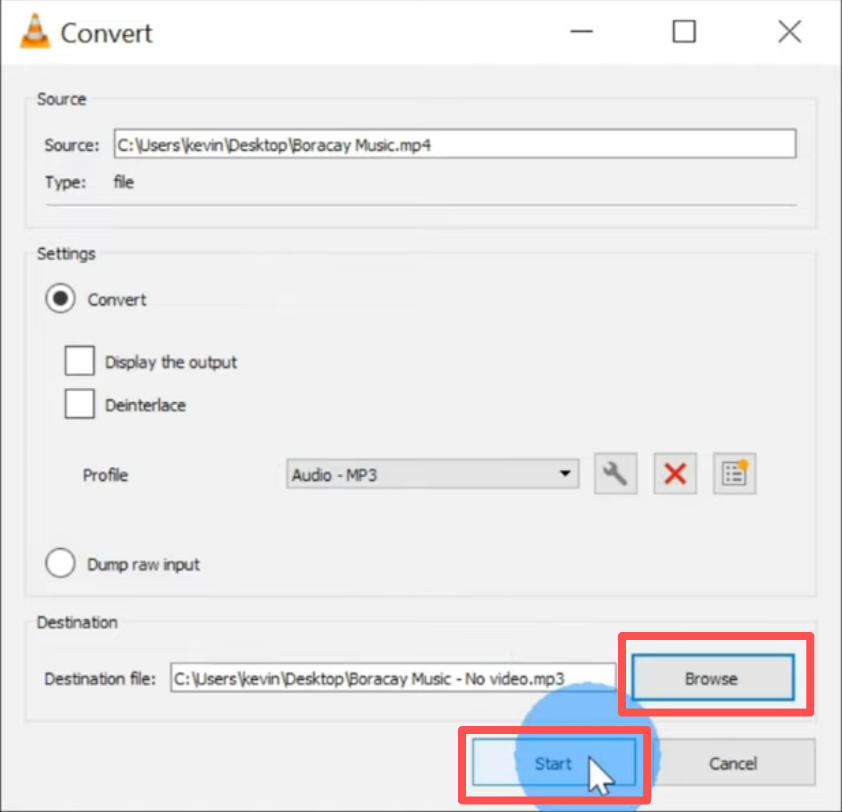
- Click Browse to choose where to save the file.
> ⚠️ Important: You must manually type .mp3 at the end of your filename (e.g., my_lecture.mp3) if it doesn't appear automatically, otherwise the file may not play.
- Click Start.
- The timeline bar in VLC will move rapidly. This isn't playback; it's the conversion progress. When it reaches the end, your MP3 is ready.
FAQ (Frequently Asked Questions)
Q: The converted MP3 has no sound. Why? A: When customizing the profile (Step 3), ensure you didn't accidentally check "Keep original audio track" if the original format isn't compatible with MP3. Also, verify that the volume wasn't muted in the player during the last session.
Q: Can I convert multiple videos at once? A: Yes. In the "Open Media" dialog, you can select multiple files using Ctrl or Shift. However, batch conversion in VLC can be tricky with naming; it usually saves the new files in the same folder as the source.
Q: Can VLC download and convert YouTube videos directly? A: Yes, via the "Open Network Stream" option. However, YouTube frequently updates its code, which often breaks VLC's ability to stream. For a 100% reliable way to record YouTube audio without downloading, check the Conclusion below.
Q: Can I do this on my iPhone or Android? A: While there are mobile apps, they are often slow and filled with ads. For the best quality and speed, we highly recommend transferring the video to a PC or Mac and using the desktop method described above.
Conclusion
For converting local video files (like MP4 or MKV) to audio, VLC Media Player remains the undisputed king in 2026. It is free, fast, and private.
However, VLC has two major limitations:
- No Source File? No Luck: VLC cannot convert what it cannot open. If you are watching a live stream, a webinar, or a protected video on YouTube/Netflix that cannot be downloaded, VLC is useless.
- Messy Music Library: If you are converting music videos, VLC output is "naked." The resulting MP3 files lack Cover Art, Lyrics, and Artist names, forcing you to organize them manually.
The All-in-One Solution: aBreezeSoft Audio Recorder
Think of aBreezeSoft as a universal capture tool. It bypasses the need for a source file by recording the audio stream directly from your system with lossless quality.
- For Streamers: Capture audio from any video playing on your screen (Browser, App, or Live).
- For Music Lovers: Its smart recognition engine automatically identifies the song and embeds correct ID3 Tags and Album Art instantly.
To explore more advanced features like schedule recording and audio editing, check out the Full User Guide.