Table of Contents:
- The Mac Audio Problem: Why is there Mic Noise?
- Method 1: The "Virtual Driver" Way (Free but Complex)
- Method 2: The Best Way (aBreezeSoft Audio Recorder)
- Wait, Why Record If I Can Already Hear It?
- Step-by-Step Guide: Record Without Background Noise
- FAQ
- Conclusion
Key Takeaways:
- Problem: Standard Mac recording tools (like Voice Memos) capture sound via the Microphone, picking up typing, coughing, and room echo.
- Solution: To get studio-quality sound, you must capture the Internal Audio Stream directly.
- Tool: aBreezeSoft Audio Recorder simplifies this process into one button. It records whatever your computer plays, ignoring external noise.
- Bonus: It automatically splits tracks, removes ads, and tags songs.
If you have ever tried to record a song from Spotify using QuickTime or a basic recorder on your Mac, you probably noticed a huge problem: The Quality.
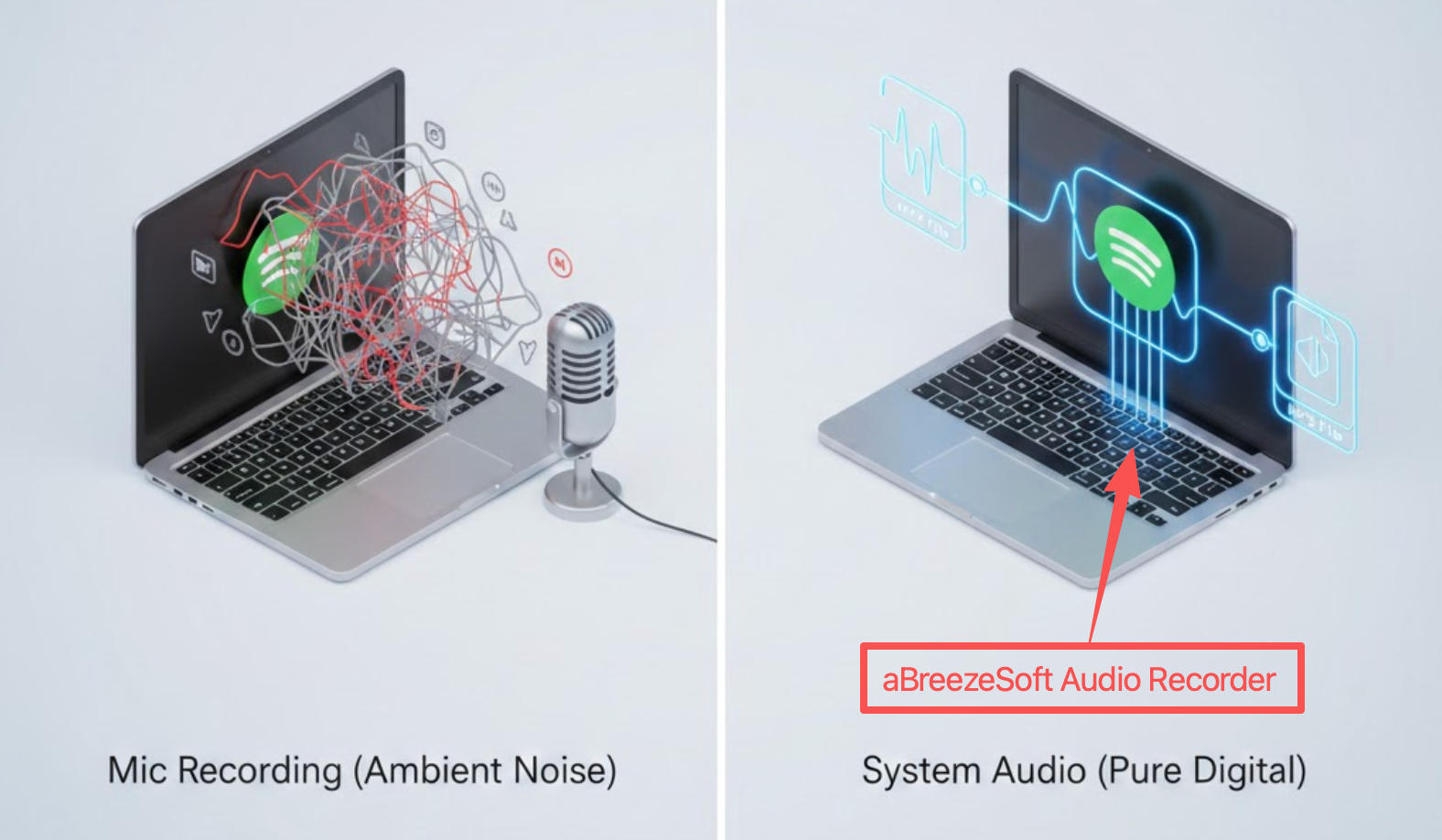
The recording sounds "distant," and worse, it picks up everything else in the room—your dog barking, your keyboard clicking, or notifications pinging. This happens because macOS prevents apps from recording internal sound by default, forcing typical recorders to rely on the microphone.
Quick Answer: To record Spotify on Mac without room noise, you need a smart recorder. aBreezeSoft Audio Recorder makes it effortless: just hit Record, and it captures the internal sound card output with 100% digital clarity.
The Mac Audio Problem: Why is there Mic Noise?
On Windows, "Stereo Mix" is often a standard feature. On macOS, Apple’s security architecture (Core Audio) creates a "Sandbox."
- The Output: Sound goes from Spotify ➡️ Speakers.
- The Input: Standard recording apps listen to the Microphone ➡️ File.
There is no bridge between them. That is why your recordings have echo and noise—you are literally recording the sound waves traveling through the air from your speakers to your mic.
Method 1: The "Virtual Driver" Way (Free but Complex)
Best for: Tech-savvy users who don't mind configuring MIDI settings.
To solve this for free, you must manually install a bridge, such as BlackHole (an open-source project).
- Install BlackHole: Download and install the driver.
- Audio MIDI Setup: Open this Mac utility and create a "Multi-Output Device" (so you can hear the music and record it at the same time).
- Route Audio: Set your Mac's system output to this new Multi-Output device.
- Record: Open a DAW (like GarageBand or Audacity) and select BlackHole as the input.
The Downside:
- It is technically difficult to set up.
- If you forget to switch your audio output back, your Mac will have no sound.
- It records all system sounds (including email alerts) into one long file with no song names.
Method 2: The Best Way (aBreezeSoft Audio Recorder)
Best for: Users who want a "One-Click" solution with zero room noise and auto-tagging.
aBreezeSoft Audio Recorder solves the "Mic Noise" problem by automating the internal routing. It is designed to "hear" what your computer plays, not what your microphone hears.
Why this creates "Perfect" Audio:
- One-Click Capture: No complex drivers or MIDI setups. Just click record.
- 100% Digital: No conversion to analog sound waves means no quality loss.
- Silence Detection: It knows exactly when a song starts and ends, automatically splitting the recording into individual tracks.
- Smart Ad Removal: Unlike the microphone method which records ads, aBreezeSoft identifies ad patterns and filters them out.
Wait, Why Record If I Can Already Hear It?
You might ask: "If I can hear the system audio on Spotify, why do I need to record it?"
This is the difference between a Stream and a File.
- Streaming (Spotify): You are "renting" the music. It requires an internet connection and a subscription. You cannot move it to a USB drive or use it in a video editing project.
- Recording (aBreezeSoft): You are converting that fleeting stream into a permanent MP3 or FLAC file. You own it. You can play it offline, transfer it to any device, and keep it forever—even if you cancel your subscription.
Step-by-Step: Record Spotify Without Background Noise
Follow this simple guide. The software is designed to automatically capture any audio playing on your computer.
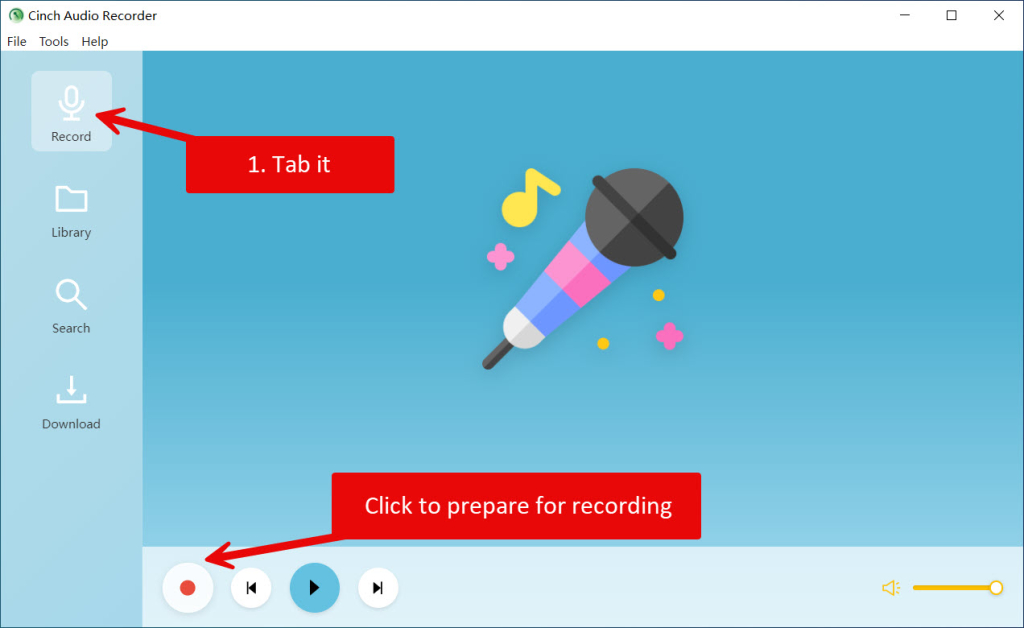
Step 1: Go to the "Record" Tab
Launch aBreezeSoft Audio Recorder on your Mac.
- Click on the "Record" tab in the main interface.
- The software is now standing by, ready to detect audio signals.
Step 2: Click the Red "Record" Button
Click the large red Record button in the bottom-left corner.
- Status: The recorder is now active and listening for System Audio.
- Note: At this point, if no music is playing, it records nothing (silence). It will not record your room noise or microphone.
Step 3: Start Playing Your Music
Open Spotify (app or web), YouTube, or Apple Music, and start playing the song or playlist you want to save.
- As soon as the music starts, you will see musical notes flying towards the central microphone icon from all directions. This animation confirms it is locking onto the clean digital audio stream.
- Relax! The recorder handles the rest automatically. It will identify the song, download the cover art, and separate tracks if you are playing a playlist.
Step 4: Finish the Session
The software automatically monitors when the music ends. If it detects a pause, it automatically splits the tracks and fills in the metadata (tags) for you.
- You do not need to do anything between songs.
- Only click the Stop button when you want to end the recording session completely.
- Your new high-quality audio files are waiting for you in the "Library" tab.
FAQ
Q: Will this record my voice if I talk during the recording? A: No. aBreezeSoft is capturing the internal "System Audio" (what the computer plays), not the microphone input. You can talk, cough, or type, and the recording will remain clean.
Q: Do I need to keep the music playing? A: Yes, this is a real-time recording tool (1:1 speed). It captures the stream as it plays.
Q: Is the quality better than "High" quality on Spotify? A: The recording is 1:1. If you play Spotify at "Very High" (320kbps), aBreezeSoft captures it at 320kbps without degradation. It is identical to the source digital stream.
Conclusion
Recording system audio on a Mac doesn't have to be complicated, and it certainly shouldn't include the sound of your room fan or keyboard clicks.
With aBreezeSoft Audio Recorder, the process is simple: Click Record, Play Music, and Relax. It is the easiest bridge to save your streaming music as permanent MP3s.