If you’re using a Spotify Free account, you’ve probably experienced this problem:
You find a great song or playlist, start recording it — and suddenly ads appear in the middle of your music.
Many users believe the only solution is upgrading to Spotify Premium.
But in reality, you can record music from Spotify Free without ads, if you use the right recording method.
In this guide, you’ll learn how to record Spotify Free music without ads, step by step, using a smart audio recorder designed for streaming platforms.
1. Why Recording Spotify Free Usually Includes Ads
Spotify Free inserts audio ads between songs.
If you use a traditional audio recorder, those ads are captured as part of the recording, making the final file unpleasant to listen to.
Common problems with normal recording tools:
- Ads are mixed directly into music files
- Manual cutting is time-consuming
- Audio transitions sound unnatural
- Batch recording becomes impossible
Once ads are recorded into an MP3 file, removing them cleanly is difficult — which is why many recordings from Spotify Free end up unusable.
2. Can You Record Spotify Free without Ads?
Spotify Free itself does not offer an option to disable ads.
However, recording Spotify audio is a different process.
The key difference is how the recorded audio is processed.
Instead of trying to interfere with Spotify playback in real time, a smarter solution is to:
- let Spotify play normally
- record the full audio stream
- intelligently clean up the recording afterward
This is where aBreezeSoft Audio Recorder makes a real difference.
3. Best Way to Record Spotify Free Account without Ads
aBreezeSoft Audio Recorder is a professional audio recording tool built specifically for streaming music services.
It supports recording from:
- Spotify (Free & Premium)
- YouTube Music
- Apple Music
- Online radio stations
And most importantly for Spotify Free users, it includes Smart Ad Removal.
4. Smart Ad Removal for Spotify Free Accounts
One of the biggest frustrations when recording Spotify Free music is audio ads.
aBreezeSoft Audio Recorder solves this problem using a post-recording smart audio filtering process.
Instead of blocking ads during playback, the software works after recording is completed:
- each recorded audio segment is automatically analyzed
- non-music or abnormal-length clips are identified
- short, non-song audio files (commonly ads) are filtered out
- only full-length music tracks are kept
What does this mean for you?
- Spotify plays normally in the background
- recording remains stable from start to finish
- your output folder contains clean, ad-free music files only
From the user’s perspective, everything is automatic.
Just click Record, play your Spotify playlist, and let the software handle the rest.
No manual editing.
No cutting ads by hand.
No Spotify Premium required.
5. How to Record Spotify Free without Ads (Step-by-Step)
Step 1: Download and Install aBreezeSoft Audio Recorder
Download the software from the official website:
Download aBreezeSoft Audio Recorder
The program is available for both Windows and macOS.
Step 2: Open Spotify Free
You can use:
- Spotify Desktop App
- Spotify Web Player
Log in with your Spotify Free account and prepare the song or playlist you want to record.
Step 3: Start Recording Spotify Music
- Launch aBreezeSoft Audio Recorder
- Click the Record button
- Start playing music on Spotify
The software automatically detects and records the audio stream.
When Spotify plays:
- 🎵 Music → recorded
- 🔇 Ads → filtered out after recording
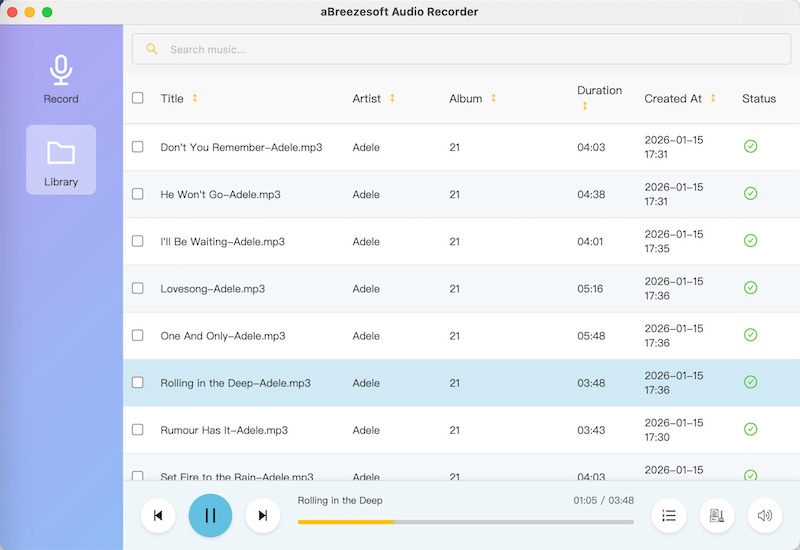
Step 4: Get Ad-Free Music Files
After recording finishes:
- open the output folder
- you’ll see individual song files
- ads are not included in the final results
Your music is now:
- offline
- clean
- permanently saved
6. Record Spotify Free in Silent Mode (Optional)
If you want to record music:
- while working
- overnight
- in an office or library
You can enable Silent Recording Mode.
With this option:
- your speakers stay silent
- recording continues in the background
- ad filtering still works normally
This is ideal for long playlists and batch recording sessions.
7. Extra Benefits: More than Just Ad-Free Recording
aBreezeSoft Audio Recorder also offers:
High-Quality Audio Output & Flexible Formats
aBreezeSoft Audio Recorder supports a wide range of audio formats, allowing you to choose the best option for your music library or playback device:
MP3, M4A, AAC, FLAC, OGG, WAV, WMA, AIFF, Opus, M4R
Whether you need a universal MP3 library, lossless FLAC files for audiophile listening, or M4R ringtones for iPhone, you can easily select the format that fits your needs.
Auto ID3 Tag Injection
Recorded files automatically include:
- song title
- artist name
- album information
- album cover artwork
Your music library stays organized without manual editing.
8. FAQs about Recording Spotify Free without Ads
Q: Do I need Spotify Premium to use this method?
No. This guide is designed specifically for Spotify Free account users.
Q: Does this modify or block Spotify ads?
No. The software does not interfere with Spotify playback.
It simply filters out non-song audio segments after recording.
Q: Is it legal to record Spotify music?
Recording streaming audio for personal use (listening, study, backup) is generally considered fair use in many regions. Redistribution or commercial use is not allowed.
For more information, see:
Is Recording Streaming Audio Legal?
9. Final Thoughts
You don’t have to upgrade your Spotify subscription just to enjoy clean music offline.
With aBreezeSoft Audio Recorder, Spotify Free users can:
- record music easily
- automatically filter out ads
- keep high-quality audio files forever
If ads have been ruining your recordings, this is the smart and stable solution.