Inhaltsverzeichnis:
- Der Albtraum des manuellen Playlist-Rippens
- Methode 1: Der mühsame Weg (Audacity)
- Methode 2: Der intelligente Weg (aBreezeSoft)
- Praxistest: Auto-Tagging & Werbeentfernung
- Schritt-für-Schritt-Anleitung: Eine komplette Playlist rippen
- FAQ
- Fazit
Kernaussagen:
- Problem: Das manuelle Rippen einer 100-Song-Playlist erfordert stundenlanges Überwachen, manuelles Trennen der Tracks und Eintippen der Namen.
- Lösung: Automatisierte Batch-Recorder erkennen Track-Wechsel und trennen Dateien automatisch.
- Tool: aBreezeSoft Audio Recorder rippt komplette Playlists und fügt automatisch ID3-Tags hinzu (Künstler, Titel, Cover).
- Bonus: Werbung wird bei Spotify-Free-Nutzern automatisch herausgefiltert.
Einen einzelnen Song von Spotify aufzunehmen ist relativ einfach. Wenn Sie jedoch eine komplette Spotify-Playlist als MP3 rippen möchten, um sie auf einem USB-Stick, im Autoradio oder auf einem Offline-MP3-Player zu hören, stehen Sie vor einer großen Herausforderung.
Ohne die richtigen Tools erhalten Sie am Ende eine einzige große Audiodatei ohne Metadaten. Sie müssten Stunden damit verbringen, die Tracks manuell zu trennen und für jede einzelne Datei „Künstler – Songname“ einzugeben.
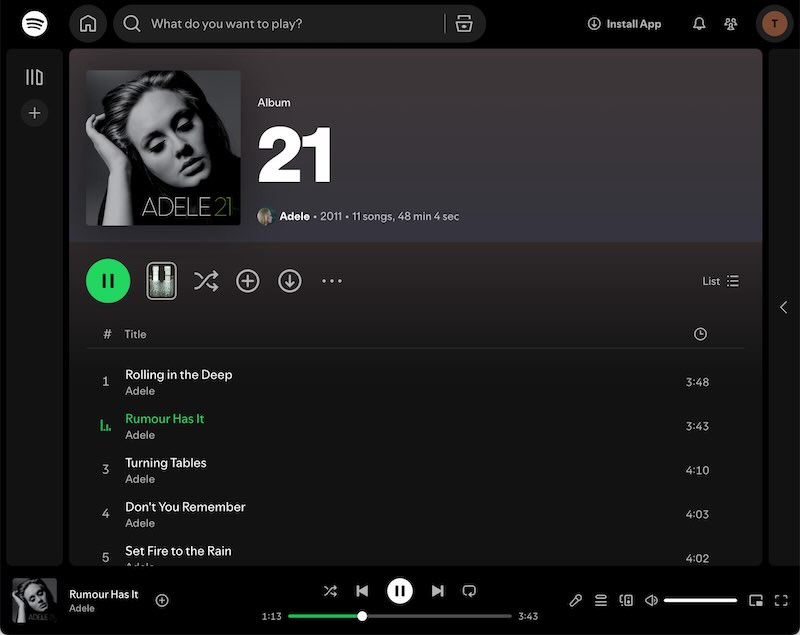
Kurzantwort: Um eine Playlist effizient zu rippen, benötigen Sie ein Tool mit Batch-Aufnahme und Auto-Tagging. Kostenlose Tools wie Audacity eignen sich für einzelne Songs, aber aBreezeSoft Audio Recorder ist der Branchenstandard für Playlists. Er trennt Tracks automatisch, erkennt die Musik zum Hinzufügen von Tags und entfernt Werbung in Echtzeit.
In diesem Leitfaden erklären wir, warum manuelle Bearbeitung überholt ist und wie Sie den Prozess automatisieren können.
Der Albtraum des manuellen Playlist-Rippens
Viele Nutzer versuchen, ihre „Discover Weekly“- oder „Lieblingssongs“-Playlists mit einfachen Audiorekordern zu speichern. Dabei stoßen sie schnell auf drei Frustrationen:
- Das Problem der „einen riesigen Datei“: Wenn Sie auf Aufnahme klicken und eine Playlist eine Stunde lang laufen lassen, erhalten Sie eine einzige 60-minütige MP3-Datei, die Sie anschließend manuell in einzelne Songs schneiden müssen.
- Fehlende Metadaten (keine Tags): Die aufgenommenen Dateien haben keine Namen. Sie erhalten lediglich
File_001.mp3. Ihr Autoradio oder Player zeigt weder Albumcover noch Künstlernamen an, es sei denn, Sie bearbeiten die ID3-Tags für jeden Song manuell. - Werbung (für Free-Nutzer): Ohne Premium wird Audiowerbung direkt mitten in Ihre Musikaufnahme aufgezeichnet.
Um Ihre Playlist wirklich als Sammlung sauber organisierter MP3s zu besitzen, benötigen Sie Software, die als intelligenter Puffer zwischen Spotify und Ihrer Festplatte fungiert.
Methode 1: Der mühsame Weg (Audacity)
Am besten geeignet für: Nutzer, die nur 1 oder 2 bestimmte Songs aufnehmen.
Audacity ist ein leistungsstarker, kostenloser Editor, aber nicht für Playlists konzipiert.
- Einrichtung: Sie müssen WASAPI-Loopback konfigurieren, um Systemaudio aufzunehmen.
- Ablauf: Sie müssen für jeden einzelnen Song auf „Aufnehmen“ und „Stoppen“ klicken oder das gesamte Set aufnehmen und anschließend stundenlang Abschnitte markieren und exportieren.
- Der Dealbreaker: Audacity kann nicht „zuhören“. Es zeichnet nur Schallwellen auf und kann weder Albumcover noch Songtitel abrufen. Alles muss manuell eingegeben werden.
Methode 2: Der intelligente Weg (aBreezeSoft Audio Recorder)
Am besten geeignet für: Komplette Playlists oder Alben ohne manuelle Arbeit.
Der aBreezeSoft Audio Recorder löst das Playlist-Problem mithilfe einer intelligenten Stream-Erkennung. Er analysiert das Audiosignal und erkennt automatisch, wann ein Song endet und der nächste beginnt.
Zentrale Funktionen für Spotify-Nutzer:
- Auto-Split: Trennt die Aufnahme automatisch in einzelne Dateien, sobald zwischen den Tracks Stille erkannt wird.
- Auto ID3 Tag Injection: Eine zentrale KI-gestützte Funktion. Durch intelligente Audioanalyse erkennt die Software jeden Track automatisch und ergänzt präzise Songtitel, Künstler, Album und Covergrafik, die nahtlos in Ihre MP3- oder FLAC-Dateien eingebettet werden.
- Smart Ad Removal: Wenn Sie von Spotify Free aufnehmen, können Werbesegmente nach der Aufnahme intelligent entfernt werden – für eine saubere und störungsfreie Mediathek.
Praxistest: Auto-Tagging & Effizienz
Wir haben das Rippen einer „Top 50“-Playlist (ca. 3 Stunden Musik) mit beiden Methoden getestet.
| Funktion | Audacity (Kostenlos) | aBreezeSoft (Automatisiert) |
|---|---|---|
| Zeitaufwand | 3 Std. Aufnahme + 2 Std. Bearbeitung | 3 Std. Aufnahme + 0 Min. Bearbeitung |
| Dateitrennung | Manuell | Automatisch |
| Metadaten | Manuell | Automatisch |
| Werbung | Aufgezeichnet | Gefiltert |
Schritt-für-Schritt: Playlist mit Auto-Tags rippen
Schritt 1: Installation
Laden Sie den Recorder für hochauflösendes Streaming herunter.
👉 Kostenlos testen (Windows / macOS)
Schritt 2: Batch-Aufnahme starten
- Starten Sie Spotify (App oder Webplayer).
- Klicken Sie in aBreezeSoft auf die große Record-Schaltfläche.
- Klicken Sie in Spotify auf Play bei Ihrer gewünschten Playlist.
Schritt 3: Einfach laufen lassen
Sie können den Computer nun unbeaufsichtigt lassen. Während die Playlist läuft:
- Die Software erkennt das Audiosignal.
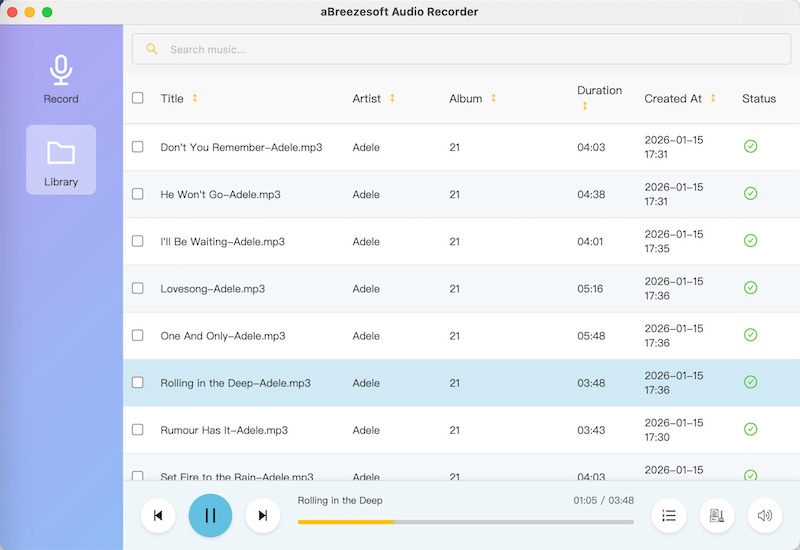
- Sie identifiziert den Track (z. B. „Blinding Lights“).
- Sie lädt Metadaten und Covergrafiken im Hintergrund herunter.
- Nach Songende speichert sie die Datei als
The Weeknd - Blinding Lights.mp3und beginnt sofort mit dem nächsten Track.
FAQ (Häufig gestellte Fragen)
F: Funktioniert das mit Spotify Free?
A: Ja. Das ist einer der größten Vorteile. Sie können auch mit einem Free-Account aufnehmen. Die Funktion Smart Ad Removal stellt sicher, dass Werbeanzeigen nicht in Ihren finalen MP3-Dateien enthalten sind.
F: Funktionieren die ID3-Tags im Auto?
A: Ja. Da aBreezeSoft standardkonforme ID3v2-Tags einbettet, zeigen Autoradio, Smartphone oder ältere MP3-Player die korrekten Titel- und Künstlernamen an.
F: Wie schnell ist der Ripping-Prozess?
A: Da es sich um eine High-Fidelity-Aufnahme handelt (kein Download-Hack), erfolgt die Aufnahme in 1× Geschwindigkeit. Dies bietet maximale Kontosicherheit, da normales Hörverhalten simuliert wird.
F: Kann ich auch von anderen Diensten aufnehmen?
A: Ja. Neben Spotify unterstützt aBreezeSoft auch YouTube Music, Pandora und Online-Radio mit derselben Auto-Tagging-Technologie.
Fazit
Das Rippen einer Spotify-Playlist sollte keine manuelle Qual sein. Während Tools wie Audacity für einzelne Sprachaufnahmen geeignet sind, sind sie für Musiksammlungen ineffizient.
Um Stunden an Arbeit zu sparen und eine professionell organisierte Musikbibliothek mit korrekten Covern und Metadaten zu erhalten, ist der aBreezeSoft Audio Recorder die optimale Lösung. Er verwandelt einen chaotischen Prozess in ein einfaches „Klicken und vergessen“.